CPU installation is one of the few build steps that genuinely varies by platform, and in 2026 you’re dealing with two very different socket designs: AMD’s AM5 (used for Ryzen 7000 through 9000 series) and Intel’s LGA1851 (Arrow Lake Core Ultra 200K series). Both require different handling, different retention mechanisms, and different thermal paste considerations. This guide walks through each one precisely, so you don’t bend pins, crack dies, or void warranties on a $300+ processor.
| Spec | AMD Ryzen 7 9800X3D 9.6/10 | AMD Ryzen 5 9600X 8.8/10 | Intel Core Ultra 9 285K 8.7/10 | Intel Core Ultra 5 245K 8.4/10 | Arctic MX-6 Thermal Paste (4g with Spatula) Unavailable 9/10 |
|---|---|---|---|---|---|
| socket | AM5 | AM5 | LGA1851 | LGA1851 | — |
| cores | 8 Cores / 16 Threads | 6 Cores / 12 Threads | 24 Cores (8P+16E) / 24 Threads | 14 Cores (6P+8E) / 14 Threads | — |
| boost_clock | 5.0 GHz | 5.4 GHz | 5.7 GHz | 5.2 GHz | — |
| tdp | 120W | 65W | 125W | 125W | — |
| cache | 104MB (96MB L3 3D V-Cache) | 38MB | 40MB | 24MB | — |
| platform | AMD Ryzen 9000 Series | AMD Ryzen 9000 Series | Intel Arrow Lake | Intel Arrow Lake | — |
| Rating | 9.6/10 | 8.8/10 | 8.7/10 | 8.4/10 | 9/10 |
Prices change daily — tap Check Price for the current Amazon price.
Prices change daily — tap Check Price for the current Amazon price.
What You’ll Need
| Item | Recommended Option | Price |
|---|---|---|
| CPU | Ryzen 7 9800X3D (AM5) or Core Ultra 9 285K (LGA1851) | Check current price |
| Motherboard | AM5 or LGA1851 (check socket before buying) | Varies |
| CPU Cooler | 240mm AIO minimum for K/X-series CPUs | Check current price |
| Thermal Paste | Arctic MX-6 (4g with spatula) | Unavailable |
| Phillips #2 Screwdriver | Any magnetic tip screwdriver | Check current price |
| Anti-static wrist strap | Optional but recommended on carpet | Check current price |
| Motherboard manual | Check the box — critical for your specific board | Free |
You’ll also need your motherboard outside the case for initial installation. Work on a clean, non-metallic surface — the motherboard’s anti-static bag works perfectly.
Which CPU Are You Installing?
The installation process splits cleanly into two paths: AM5 (AMD) and LGA1851 (Intel). The core difference is where the pins live.
AM5 — pins are on the motherboard socket. The CPU has flat pads. If you drop an AM5 CPU, nothing bends. The risk is on the motherboard side, so handle the socket carefully and never touch the socket pins.
LGA1851 — same philosophy as LGA1700 before it. Pins are on the motherboard socket. The CPU has a flat contact surface. LGA1851 has a tighter socket tolerance than LGA1700, so alignment matters more. Intel ships a plastic protective cover on LGA1851 sockets — do not remove it until you’re ready to drop the CPU in.
Both platforms require thermal paste between the CPU’s integrated heat spreader (IHS) and the cooler’s cold plate. Some coolers ship with pre-applied paste — if yours does, you can skip the manual paste step, though aftermarket paste typically performs better.
Featured CPUs for This Guide
AMD Ryzen 7 9800X3D
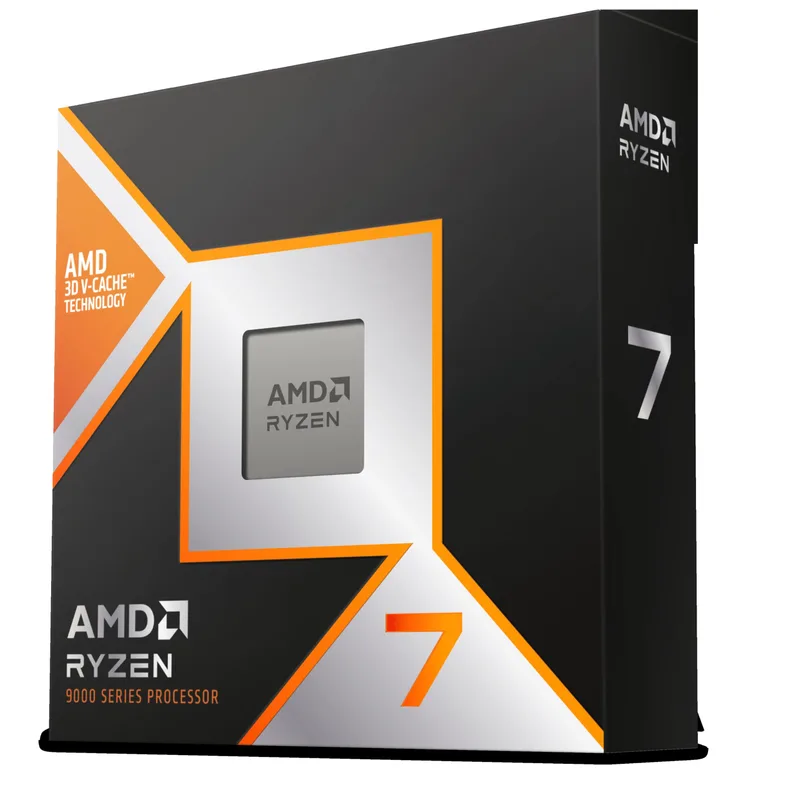
The 9800X3D is the most popular AM5 CPU right now, and the installation demonstrates the platform well. At 120W TDP, it needs a quality cooler — a 240mm AIO or a large air cooler like the Noctua NH-D15 keeps it under 75°C at full load. The 3D V-Cache stack on the die top means the IHS is slightly taller than a standard Zen 5 CPU, but all AM5 coolers accommodate this without modification.
AMD Ryzen 5 9600X
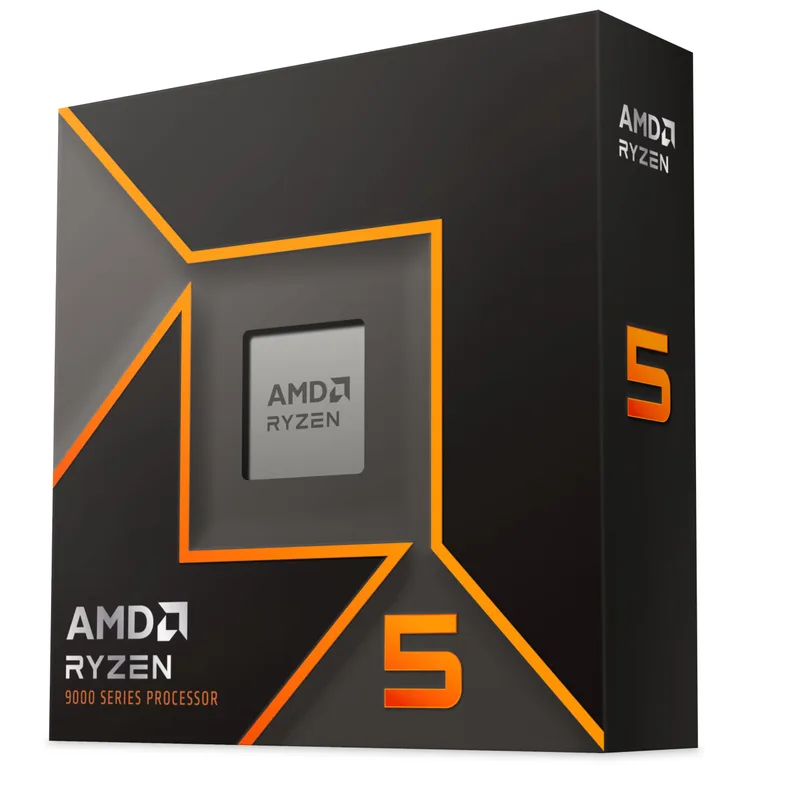
The 9600X is the starter AM5 CPU, and at 65W TDP it’s the easiest AM5 install. AMD bundles a Wraith Stealth cooler in the box with pre-applied thermal paste — useful for a first build. If you’re using the stock cooler, skip the thermal paste application section below and mount it directly. Replace the stock paste with MX-6 if you later upgrade to a larger cooler.
Intel Core Ultra 9 285K
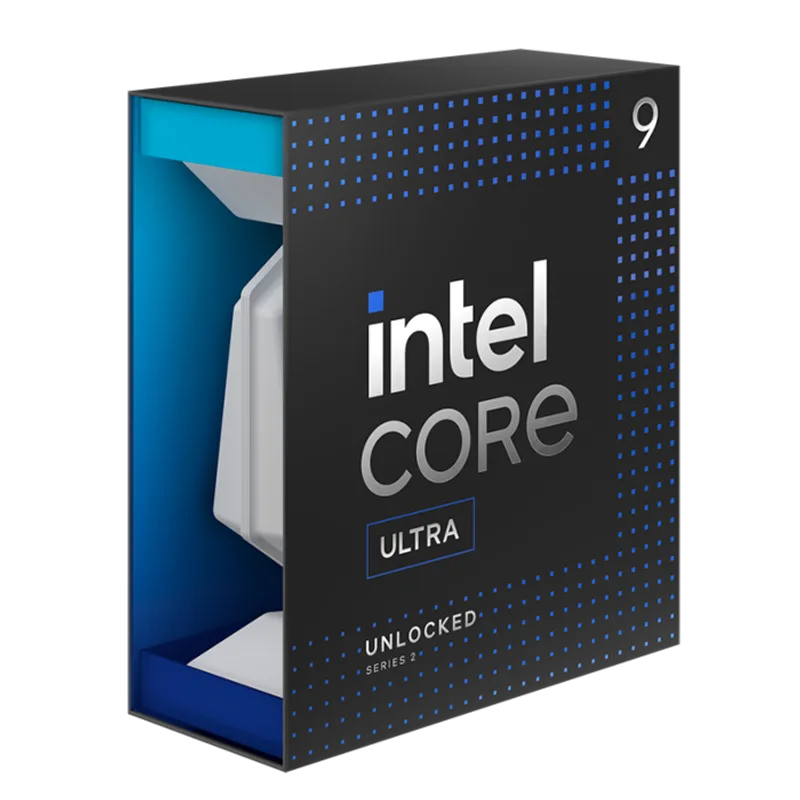
The 285K is Intel’s flagship Arrow Lake chip and the most demanding LGA1851 install. At 125W TDP (up to 253W with power limits removed), it needs a 280mm or 360mm AIO to avoid thermal throttling under sustained workloads. The Z890 boards this CPU pairs with have reinforced LGA1851 retention mechanisms — you’ll need to apply more force closing the socket lever than you would on older platforms.
Intel Core Ultra 5 245K
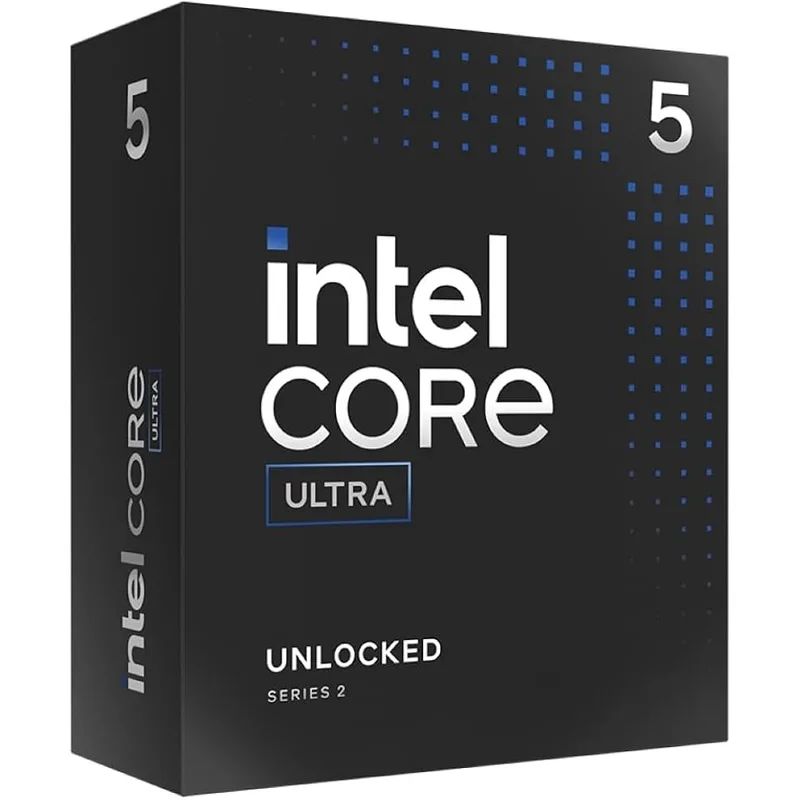
The 245K follows the same LGA1851 installation process as the 285K. One advantage: it ships with Intel’s integrated Xe graphics, so you can boot without a discrete GPU to verify the install worked. Useful for troubleshooting. At 125W TDP it still needs a 120mm AIO minimum — air cooling is possible with a tower-style cooler rated above 150W.
Arctic MX-6 Thermal Paste
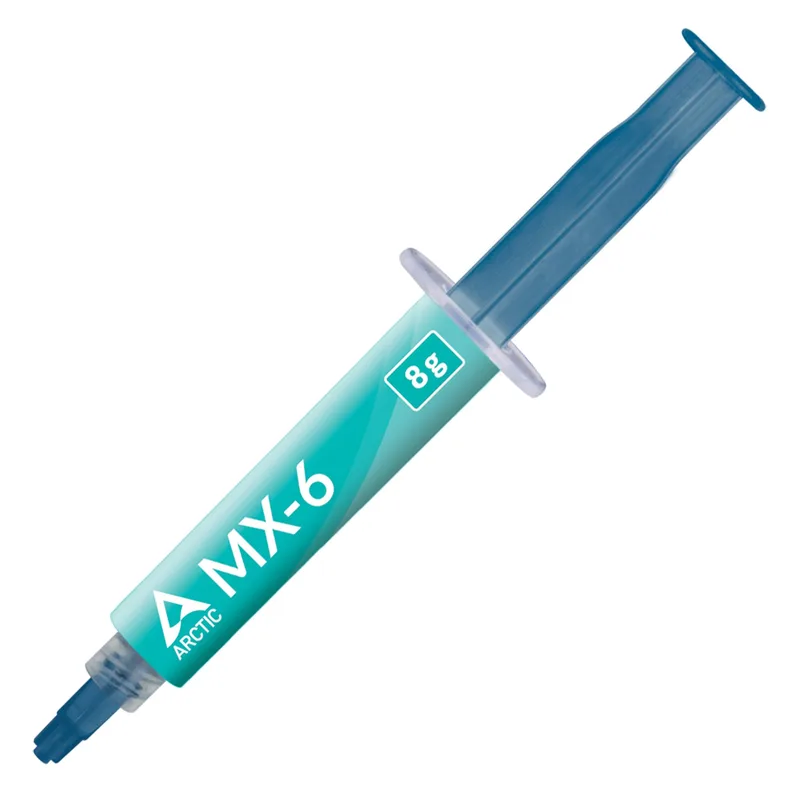
Arctic MX-6 Thermal Paste (4g with Spatula)
The MX-6 is our go-to thermal paste for both platforms. At 8.2 W/mK it’s 3-4°C better than the stock paste Intel and AMD bundle with their CPUs, and its non-conductive formula makes application forgiving. The included spatula is particularly useful on LGA1851’s larger IHS surface — a thin spread is more effective than a pea-sized dot on that contact area.
Step-by-Step Installation
AM5 CPU Installation (Ryzen 7000 / 9000 Series)
Step 1: Prepare the motherboard
Place the motherboard on a flat non-metallic surface (the anti-static bag it shipped in works). Locate the AM5 socket — it’s the large square socket near the center-top of the board.
Step 2: Open the socket retention arm
Push down on the metal retention arm and swing it outward to release it, then lift it up to the full open position. The metal frame covering the socket will lift with it. Do not touch the gold pins inside the socket.
Step 3: Orient the CPU
Look at the bottom of the CPU — you’ll see a small gold triangle in one corner. The AM5 socket has a corresponding triangle marker on the socket frame. These triangles must align. The CPU only fits one way.
Step 4: Drop the CPU in
Hold the CPU by its edges — never touch the gold contact pads on the bottom. Lower it straight down into the socket. It should drop in without any force. If it doesn’t seat flat, re-check the triangle alignment before applying any pressure.
Step 5: Close the retention arm
Lower the metal frame back over the CPU, then press the retention arm down and lock it under the socket tab. You’ll feel and hear a slight click. Normal resistance — don’t be alarmed by the force required.
Step 6: Apply thermal paste
Place a small pea-sized dot (approximately 4mm diameter) in the center of the CPU’s IHS. For AM5 CPUs, the dot method works well — the cooler’s clamping pressure spreads it adequately. Skip this if your cooler has pre-applied paste.
Step 7: Mount the cooler
Follow your cooler’s specific instructions. AM5 uses a 54mm mounting hole spacing. Most coolers ship with AM5 brackets — confirm yours before starting. Tighten the mounting screws in an X pattern to ensure even pressure distribution.
LGA1851 CPU Installation (Intel Core Ultra 200K Series)
Step 1: Prepare the motherboard
Place the motherboard on a non-metallic surface. The LGA1851 socket has a plastic protective cover over the pins — leave it in place until you’re ready to insert the CPU.
Step 2: Open the retention mechanism
LGA1851 uses a stainless steel load plate secured by a lever on the side of the socket. Push the lever down and to the side to release it, then lift the load plate fully upward. The plastic protective cap will pop off on its own when you open the load plate — catch it and set it aside (some board manufacturers ask you to keep it for warranty purposes).
Step 3: Orient the CPU
The Core Ultra 200K CPU has a small notch on two sides and a golden triangle in one corner. The socket has corresponding alignment keys. Locate the triangle on the socket frame and match it to the triangle on the CPU.
Step 4: Place the CPU
Hold the CPU by its edges. Lower it straight down into the socket — it should rest in place without any force. Do not press down or apply pressure at this stage.
Step 5: Close the load plate
Lower the load plate over the CPU, then press the lever down and lock it under the retention tab. LGA1851 requires noticeably more force to close than LGA1700 did — this is normal. Intel rates the socket for hundreds of insertion cycles.
Step 6: Apply thermal paste
The 285K’s IHS is larger than previous Intel CPUs. Use the Arctic MX-6 spatula to spread a thin, even layer across the entire IHS surface — roughly 0.5mm thick. This is more effective than the dot method on large IHS surfaces because it ensures full contact coverage without air pockets.
Step 7: Mount the cooler
LGA1851 uses 78mm mounting hole spacing (up from 75mm on LGA1700). Check that your cooler’s Intel bracket supports LGA1851 specifically — LGA1700 brackets are physically different and will not mount correctly.
Thermal Paste Application Methods
Pea method — small dot in the center of the IHS, let the cooler spread it. Best for AM5 CPUs and most 120mm/240mm AIO installations. Simple and repeatable.
Spread method — use the spatula to spread a thin even layer across the full IHS. Best for large IHS surfaces like the Core Ultra 9 285K. Reduces the chance of air pockets at the edges.
X method — draw a thin X across the IHS with the paste tube. Works well for most CPUs but risks uneven coverage on the 285K’s larger surface.
Regardless of method: use less paste than you think you need. The goal is a thin film under pressure, not visible squeezeout at the edges. If paste squeezes out past the IHS edge, you used too much.
First Boot Checklist
After installing the CPU and cooler, run through this list before powering on:
- CPU retention lever/arm fully locked
- Cooler mounting screws fully tightened (finger-tight plus a quarter turn)
- CPU power connector plugged in (8-pin EPS connector near the top-left of most boards)
- RAM seated in the correct slots (consult your board manual — usually A2/B2 for two sticks)
- All chassis fans connected
- No tools or loose screws inside the case
On first boot, enter the BIOS immediately (typically by pressing Delete or F2 during POST). For AM5 CPUs, enable EXPO profile to activate your RAM’s rated speed. For LGA1851, enable XMP 3.0 profile. Neither setting is enabled by default.
Upgrade Path
AM5 owners: AMD has committed to AM5 support through at least 2027. The Ryzen 9 9950X3D (upcoming) will drop into the same socket as the 9600X or 9800X3D. If you’re on a 9600X, the 9800X3D is the first meaningful upgrade target — expect 15-20% gaming gains.
LGA1851 owners: Z890 boards support the full Arrow Lake lineup, including any refresh models. The 245K can step up to the 285K without any BIOS modification beyond a standard firmware update.
Both platforms support DDR5 only — there’s no DDR4 migration path on either AM5 or LGA1851.
FAQ
Do I need thermal paste if my cooler has it pre-applied?
No — if your cooler ships with pre-applied thermal compound, you can mount it directly. The pre-applied paste on most decent coolers (Noctua, Arctic, Deepcool) performs well out of the box. Aftermarket paste like MX-6 is worth applying if you’ve removed and remounted a cooler, since the original paste won’t re-spread evenly.
Can I reuse thermal paste from my old CPU?
No. Once thermal paste has been compressed and heat-cycled, its properties change. Remove old paste with 90%+ isopropyl alcohol and a lint-free cloth or coffee filter, then apply fresh paste.
How much force is normal when closing the LGA1851 socket?
More than you’d expect. Intel’s engineering samples require measurable force to close the load plate — the socket is rated for 150+ lbs of clamping force. If the lever won’t close with moderate pressure, confirm the CPU is seated correctly (not resting on the retention tabs) and try again.
Do I need an anti-static wrist strap?
On carpet, yes — ESD can kill DRAM and CPU contact pads. On a tile or hardwood floor, the risk is lower, but grounding yourself by touching a metal case before handling components is always good practice.
What happens if I bent a pin on the motherboard socket?
Stop immediately. A bent pin in AM5 or LGA1851 can be carefully straightened with a mechanical pencil (with the lead removed) or a thin, rigid implement. Do not force the CPU in over bent pins — contact your board manufacturer if the damage is severe.
The Bottom Line
AM5 and LGA1851 installations are more forgiving than they look. The Ryzen 7 9800X3D is the top gaming CPU on AM5 and installs cleanly on any AM5 board with an X3D-compatible cooler. The Core Ultra 9 285K is the better choice for workstation and content creation workloads, but it needs a capable 280mm or 360mm AIO and a proper thermal paste spread across its wider IHS. For budget builds, the Ryzen 5 9600X is the easiest AM5 install — 65W TDP, stock cooler included, and the Wraith Stealth is adequate for everyday use.