GPU installation changed significantly in 2026. NVIDIA’s RTX 5000 series — the first consumer desktop GPUs with PCIe 5.0 x16 support — use a 16-pin 12V-2x6 connector that’s physically different from the 8-pin connectors AMD and older NVIDIA cards use. Sliding in a budget Arc B570 on a 450W PSU takes 15 minutes. Wrestling an RTX 5080 Founders Edition into a mid-tower with an 850W unit takes 25. Both require the same sequence of steps, and the main risks are all avoidable. This guide covers both connector types, slot clearance, driver installation, and what to do when the system won’t POST.
| Spec | ASUS TUF GeForce RTX 5070 OC Edition 9/10 | Sapphire Pulse AMD Radeon RX 9070 XT Gaming 16GB 8.9/10 | NVIDIA GeForce RTX 5080 Founders Edition 9.4/10 | MSI GeForce RTX 5070 12G Ventus 2X OC 8.6/10 | ASRock Intel Arc B570 Challenger OC 8.2/10 |
|---|---|---|---|---|---|
| VRAM | 12GB GDDR7 | 16GB GDDR6 | 16GB GDDR7 | 12GB GDDR7 | 10GB GDDR6 |
| Memory Bus | 192-bit | 256-bit | 256-bit | 192-bit | 160-bit |
| PCIe | 5.0 x16 | 4.0 x16 | 5.0 x16 | 5.0 x16 | 4.0 x16 |
| TDP | 200W | 265W | 360W | 200W | 150W |
| PSU Required | 700W minimum | 700W minimum | 850W minimum | 700W minimum | 450W minimum |
| Power Connector | 16-pin 12V-2x6 (PCIe Gen 5) | 2x 8-pin PCIe | 16-pin 12V-2x6 (PCIe Gen 5) | 16-pin 12V-2x6 (PCIe Gen 5) | 1x 8-pin PCIe |
| Rating | 9/10 | 8.9/10 | 9.4/10 | 8.6/10 | 8.2/10 |
Prices change daily — tap Check Price for the current Amazon price.
Prices change daily — tap Check Price for the current Amazon price.
What You’ll Need
| Item | Recommended Option | Price |
|---|---|---|
| GPU | See featured cards below | Check current price |
| PSU | 700W minimum for RTX 5070/RX 9070 XT; 850W for RTX 5080 | Check current price |
| Phillips #2 Screwdriver | Magnetic tip recommended | Check current price |
| Anti-static wrist strap | Required on carpet; optional on hard floors | Check current price |
| PCIe power adapter | Included with most RTX 5000 cards (16-pin to 3x 8-pin) | Bundled |
| Display cable | HDMI 2.1 or DisplayPort 2.1 for high refresh rate monitors | Check current price |
You’ll need the case open and the current GPU (if any) removed before starting. Work with the system powered off and unplugged. Touch the metal case chassis before handling any component to discharge static.
Power Connectors in 2026: Two Different Systems
This is the most common installation mistake in 2026 builds: confusing the two connector types.
16-pin 12V-2x6 (PCIe Gen 5) — used by NVIDIA RTX 5070, 5070 Ti, 5080, and 5090. This connector delivers up to 600W and looks like a wider, taller version of an 8-pin. Most RTX 5000 cards ship with an adapter (3x 8-pin to 1x 16-pin) for use with older PSUs. If your PSU has a native 16-pin cable, use it — adapters are fine but introduce one more connection point.
2x 8-pin PCIe — used by AMD RX 9070 and 9070 XT, and most previous-gen NVIDIA cards. Two separate 8-pin cables from the PSU, both need to be seated until they click. Mixing a single 8-pin on a 2x 8-pin card causes instability and crashes under GPU load.
1x 8-pin PCIe — used by budget cards like the Arc B570, most GTX 1060/1070-era cards still in circulation, and some AMD mid-range options. The simplest install: one cable, no adapters.
No power connector — some low-profile cards (GTX 1630, Arc A380) draw all power from the PCIe slot itself. These are rare but exist for small form factor builds.
Featured GPUs for This Guide
ASUS TUF GeForce RTX 5070 OC Edition
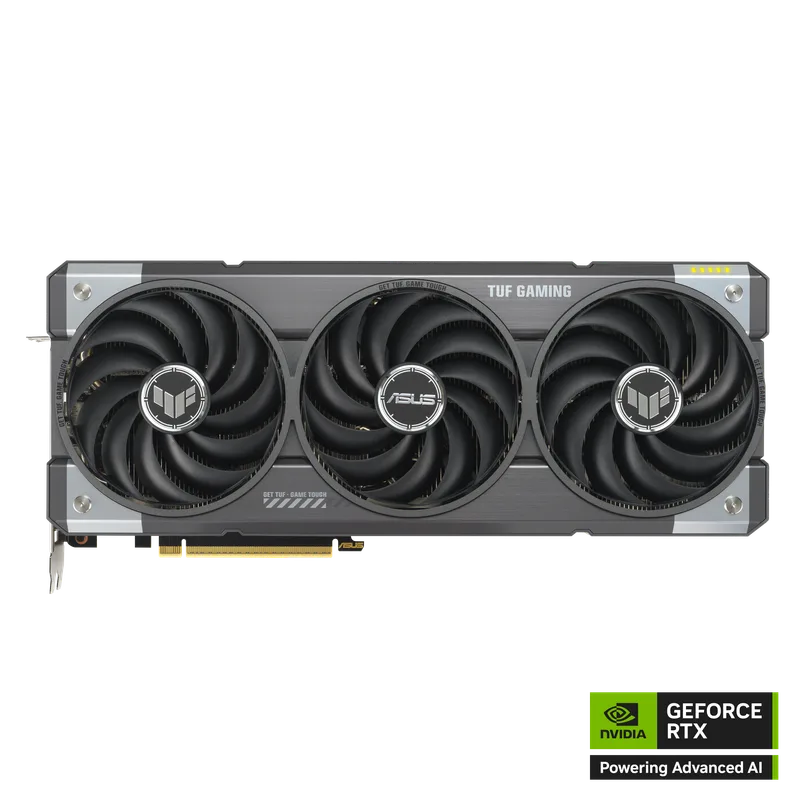
The TUF RTX 5070 OC is the most common 2026 mainstream install. Its triple-fan, triple-slot shroud needs 3 expansion bay slots in your case — most mid-towers accommodate this, but verify before buying. The 16-pin cable sits on the side of the card near the rear I/O, not the top — route your PSU cable through the cable management channel behind the motherboard tray before installing the GPU, or you’ll need to re-route afterward. At 700W PSU minimum, most systems built in the last 4 years can handle it.
Sapphire Pulse AMD Radeon RX 9070 XT Gaming 16GB
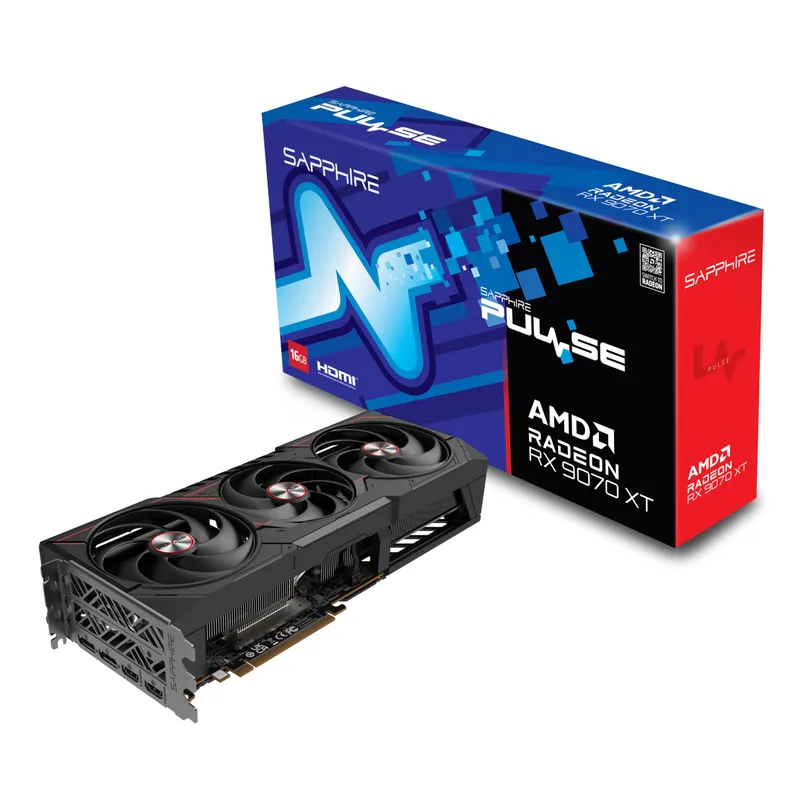
The RX 9070 XT uses dual 8-pin connectors, which every modern PSU supports natively. The Pulse model runs a 2.5-slot cooler — slimmer than the TUF OC but still occupies two PCIe bay slots. At 265W TDP it runs warmer than the RTX 5070 under sustained load; plan for at least two 120mm case fans for adequate exhaust. The Pulse shroud is long — measure your case’s GPU clearance (typically listed as max GPU length in the case specs). Most mid-towers handle up to 330-350mm; the Pulse is 325mm long.
NVIDIA GeForce RTX 5080 Founders Edition
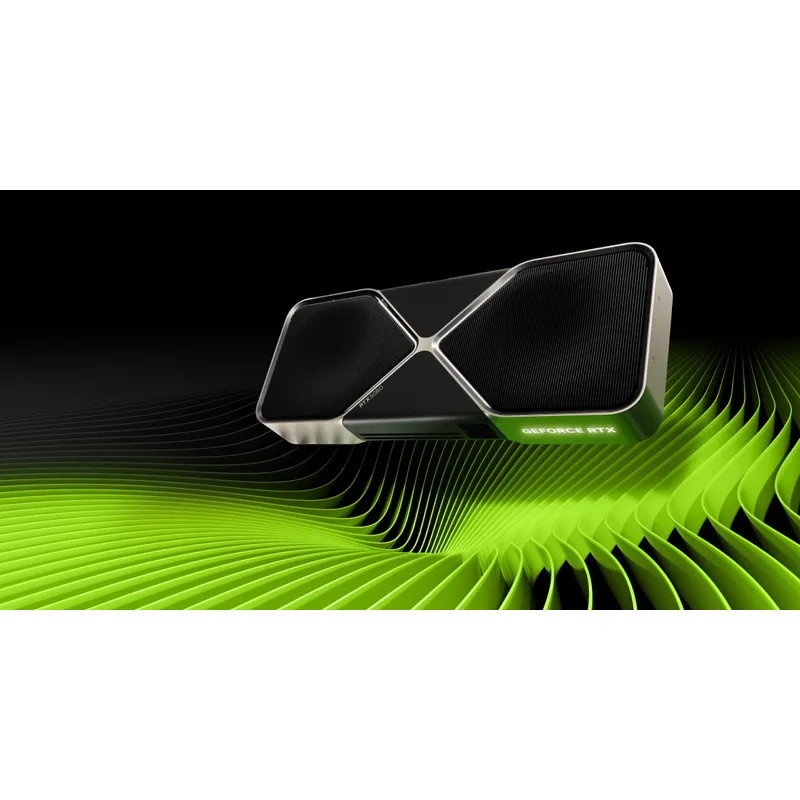
The RTX 5080 Founders Edition is unusual: it’s a dual-slot card despite its 360W TDP, using NVIDIA’s vapor chamber cooling system. This makes it easier to install in tighter cases than competing triple-slot AIB models. The 16-pin power connector is on top of the card. At 360W, you need a confirmed 850W PSU — a 750W unit running other high-TDP components risks brownout shutdowns under simultaneous CPU+GPU load. Check your PSU’s combined 12V rail amperage, not just wattage.
MSI GeForce RTX 5070 12G Ventus 2X OC
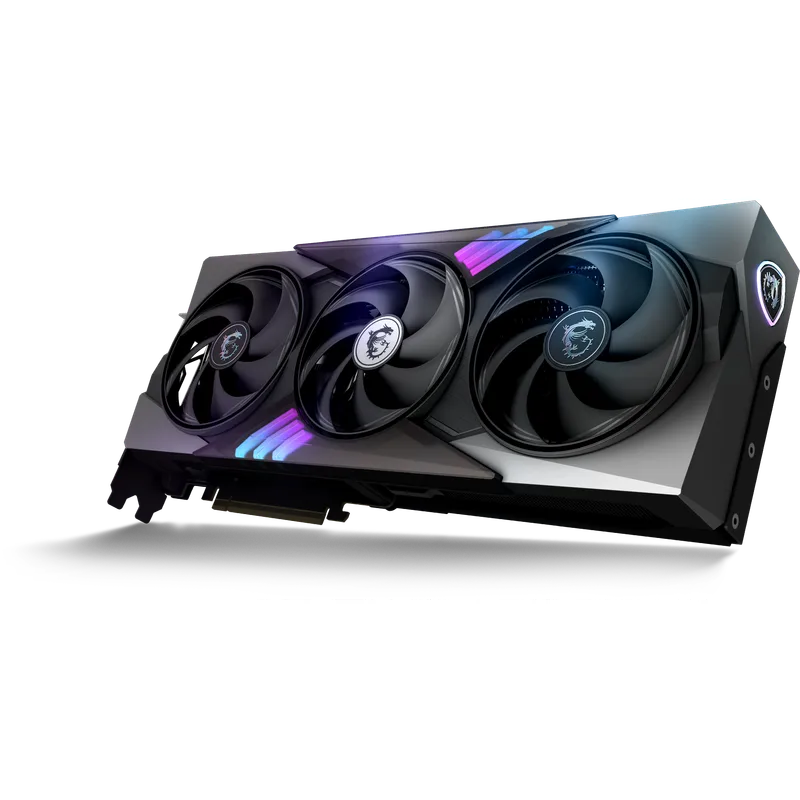
The Ventus 2X is the compact RTX 5070 option — 298mm long and dual-slot, fitting in cases where the TUF OC won’t. Same 12GB GDDR7 as the TUF, same 16-pin power connector, same 700W PSU requirement. If you’re building in a Mini-ITX or small mid-tower, this is the RTX 5070 to buy. The tradeoff: the dual-fan cooler spins faster under load and is audible at full blast — roughly 38-40 dBA at max RPM vs. 35 dBA on the triple-fan TUF OC.
ASRock Intel Arc B570 Challenger OC
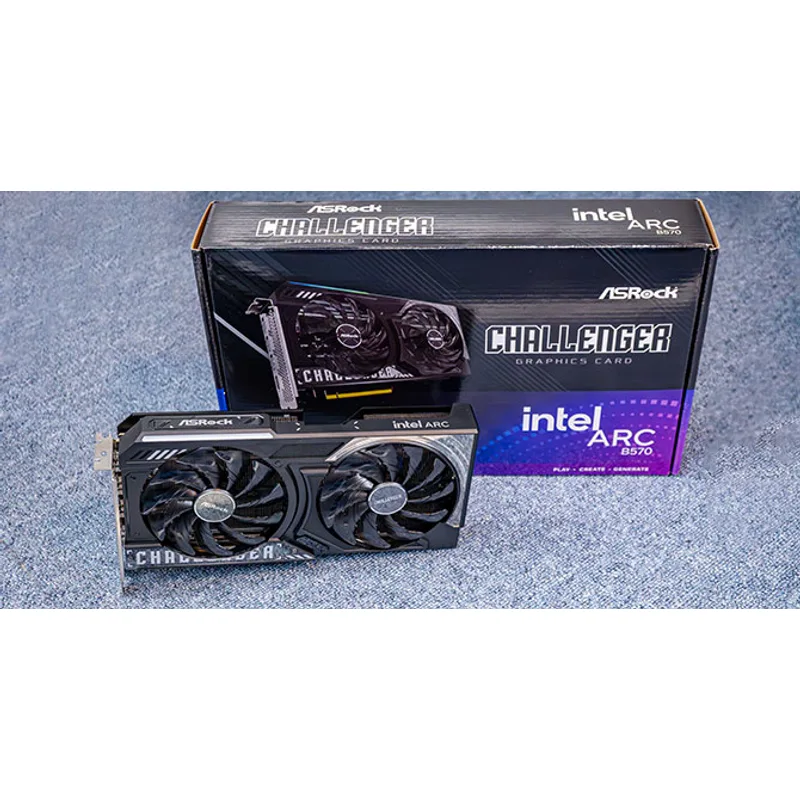
The Arc B570 is the simplest installation in this guide. Single 8-pin power connector, dual-slot form factor, 150W TDP, and a 450W PSU gets you running. Intel’s Resizable BAR (ReBAR) is critical for Arc performance — it’s enabled by default on most Z790, Z890, X670E, and X870E boards, but verify your BIOS has it on before installing drivers. Without ReBAR, Arc cards lose 15-25% performance in rasterization.
Step-by-Step GPU Installation
Preparation
Step 1: Power down completely
Shut down Windows, flip the PSU switch to off (the O/I switch on the back), and unplug the power cord. Wait 10 seconds for capacitors to discharge. This is mandatory — PCIe slots are not hot-swappable.
Step 2: Open the case and remove PCIe bracket covers
Most cases use either screws or a tool-free latch to hold PCIe slot covers. Count how many slots your GPU needs (check the spec above), then remove that many covers from the rear of the case. For a triple-slot card, remove three covers. Keep the screws — you’ll use them to secure the GPU bracket.
Step 3: Remove the existing GPU (if upgrading)
Unplug all power cables from the existing GPU first. Locate the PCIe slot retention latch — it’s a small tab at the end of the PCIe x16 slot on the motherboard. Press it down or to the side (varies by board) while pulling the GPU straight out of the slot. Don’t yank the card sideways.
Installing the GPU
Step 4: Seat the GPU in the PCIe x16 slot
Your motherboard has multiple PCIe slots — use the primary PCIe x16 slot, which is always the top-most full-length slot (closest to the CPU socket). Hold the GPU by its edges or the cooler shroud — avoid touching the gold PCIe connector on the bottom edge.
Lower the GPU straight down into the slot. Line up the gold connector with the slot and apply even downward pressure until you hear the retention latch click. The click confirms the card is fully seated. If the card isn’t fully seated, it may show no display or fail to POST.
Step 5: Secure the I/O bracket
The GPU’s rear I/O bracket (where the display outputs are) lines up with the case’s PCIe expansion slots at the rear. Install the screws you removed in Step 2 to secure the bracket. These screws prevent the GPU from flexing under its own weight and are important for long-term PCIe connector health.
Step 6: Connect the power cables
For 16-pin (RTX 5000 series): Route the 16-pin cable from your PSU through the case. The connector only fits one orientation — it won’t click in backward. If you’re using the included 3x 8-pin adapter, attach all three 8-pin connectors to the adapter block before connecting the 16-pin end to the card. A partially populated adapter (e.g., only 2 of 3 8-pin connectors attached) causes power instability under high GPU load.
For 2x 8-pin (RX 9070 XT): Route two separate PCIe power cables — do not use a single cable with two 8-pin connectors daisy-chained from one rail if you can avoid it. Two separate cables from the PSU’s separate PCIe outputs provide cleaner power delivery. Both connectors must click in fully.
For 1x 8-pin (Arc B570): Single cable, single click. Confirm it’s fully seated.
Step 7: Close the case and reconnect display cables
Connect your monitor to the GPU’s display outputs — not the motherboard’s display outputs. Using the motherboard’s HDMI/DP outputs with a discrete GPU installed will give you no display or severely degraded performance (output from the iGPU). For RTX 5080 and RTX 5070, use DisplayPort 2.1 for 144Hz+ at 1440p or 4K.
Driver Installation
Step 8: Boot into Windows
Windows 11 may automatically install a basic driver via Windows Update. Don’t rely on this for gaming — it installs a Generic Display Adapter driver, not NVIDIA/AMD’s full Game Ready package.
Step 9: Install GPU drivers
- NVIDIA RTX 5000 series: Download Game Ready Driver from nvidia.com/drivers. Select your card, Windows 11, and GAME READY DRIVER (not Studio). Run the installer and choose Express Installation.
- AMD RX 9070 XT: Download Adrenalin Edition from amd.com/support. The installer handles Radeon Software and driver in one package.
- Intel Arc B570: Download Arc & Iris Xe Graphics Driver from intel.com/drivers. Also enable ReBAR in BIOS if not already active.
Step 10: Verify installation
Open Device Manager (Win+X → Device Manager) and confirm your GPU appears under Display Adapters with no warning icons. Open GPU-Z or HWiNFO64 and confirm the PCIe lane width shows as x16 (not x4 or x1, which indicates a slot or BIOS issue).
Performance Expectations
| GPU | 1080p Ultra | 1440p Ultra | 4K Ultra |
|---|---|---|---|
| Arc B570 | 90–110 FPS | 60–75 FPS | Not recommended |
| RTX 5070 Ventus 2X | 160–180 FPS | 115–135 FPS | 65–80 FPS |
| RTX 5070 OC (TUF) | 165–185 FPS | 120–140 FPS | 68–82 FPS |
| RX 9070 XT Pulse | 155–175 FPS | 110–130 FPS | 62–78 FPS |
| RTX 5080 FE | 200+ FPS | 155–175 FPS | 95–115 FPS |
Averages across Control, Cyberpunk 2077, Microsoft Flight Simulator 2026, and The Finals at respective settings.
Enable DLSS 4 (NVIDIA) or FSR 4 (AMD) if your target FPS isn’t met natively — DLSS 4 Quality mode costs under 5% visual fidelity for 40-60% more FPS in most titles.
Upgrade Path
Arc B570 owners: The B570 covers 1080p and light 1440p work for 2-3 years. When you hit GPU limits, the RX 9070 XT or RTX 5070 are the natural step-ups — both use the same PCIe x16 slot and require only a PSU upgrade if you’re on a 450W unit.
RTX 5070 owners: The 5070 will stay relevant at 1440p through 2027-2028. If VRAM becomes the bottleneck before then, the RTX 5080 is the same physical form factor — same PCIe slot, different power draw (850W PSU required). No case or motherboard change needed.
RX 9070 XT owners: AMD’s RDNA 4 lineup sits between the 9070 XT and nothing directly above it currently. The natural upgrade in the AMD stack will be the RX 9080 when it launches — if it appears on PCIe 4.0 like the 9070 XT, your current motherboard handles it without modification.
RTX 5080 owners: You’re at the ceiling for most builds. The RTX 5090 steps up to a 1000W PSU requirement — check your PSU headroom before upgrading.
FAQ
Do I need a new PSU for an RTX 5070 or RX 9070 XT?
If your current PSU is 600W or less, yes. Both cards need 700W minimum under combined CPU+GPU load. A 550W PSU running an older GPU is fine, but adding a 200-265W card to the same PSU with a modern 125W+ CPU leaves almost no headroom for spikes. Under-powered systems don’t fail cleanly — they crash mid-game without warning.
My monitor shows no signal after installing the GPU. What’s wrong?
Three common causes: (1) Display cable is plugged into the motherboard output instead of the GPU — move it to the GPU. (2) GPU is not fully seated — press the card down until the PCIe latch clicks audibly. (3) Power cable isn’t fully connected — a partially seated power connector can prevent POST. Check all three before assuming the GPU is defective.
Can I install an RTX 5070 in an older PCIe 4.0 or PCIe 3.0 motherboard?
Yes. RTX 5000 cards are backward compatible with PCIe 4.0 and 3.0 slots. PCIe 4.0 motherboards show minimal performance loss (under 1% in most games). PCIe 3.0 x16 shows a larger gap only in GPU-limited scenarios at 4K — still functional, but you’ll leave some performance on the table.
Does it matter which PCIe x16 slot I use if my board has two?
Use the top-most PCIe x16 slot. On Intel Z890 and AMD X870E boards, the secondary PCIe x16-sized slot often runs at x4 electrically — a GPU in that slot gets one-quarter the bandwidth, causing noticeable performance loss in demanding titles. Check your motherboard manual to confirm which slot runs at full x16.
What if the PCIe retention latch won’t release when removing the old GPU?
The latch is spring-loaded and can be stiff, especially on budget boards. Use a flathead screwdriver or a pen tip to depress the latch — don’t force the GPU sideways before the latch is clear. Forcing it can damage the PCIe slot retainer or crack the board.
The Bottom Line
GPU installation in 2026 has one new wrinkle — the 16-pin PCIe Gen 5 connector — but the fundamentals haven’t changed. The ASUS TUF RTX 5070 OC is the easiest mainstream install: it ships with a proper adapter, runs 1440p at 120+ FPS, and fits in any full mid-tower. The Sapphire Pulse RX 9070 XT is the AMD alternative for builders who prefer 8-pin connectors and need 16GB VRAM headroom. For tight cases or budget builds, the MSI RTX 5070 Ventus 2X and ASRock Arc B570 install cleanly without requiring PSU upgrades on most existing systems.