With RTX 5000 series GPUs now demanding up to 575W and AM5 boards requiring BIOS updates before recognizing Ryzen 9000 CPUs, building a PC in 2026 has more compatibility pitfalls than ever. These 10 mistakes turn expensive hardware into a blank screen—and most of them take under five minutes to prevent.
| Spec | Seasonic Focus GX-850 ATX 3.1 9.2/10 | Thermal Grizzly Kryonaut 1g Kit 9/10 | STREBITO Anti-Static Wrist Strap 8.5/10 | TL611 Pro Mainboard Debug Card Unavailable 8.3/10 | ARCTIC MX-6 (4g + MX Cleaner) 8.8/10 |
|---|---|---|---|---|---|
| wattage | 850W | — | — | — | — |
| certification | 80+ Gold / Cybenetics Platinum | — | — | — | — |
| connector | 12V-2x6 PCIe 5.1 | — | — | — | — |
| modularity | Fully Modular | — | — | — | — |
| warranty | 10 Years | — | — | — | — |
| standard | ATX 3.1 | — | — | — | — |
| Rating | 9.2/10 | 9/10 | 8.5/10 | 8.3/10 | 8.8/10 |
Prices change daily — tap Check Price for the current Amazon price.
Prices change daily — tap Check Price for the current Amazon price.
Essential Toolkit at a Glance
Before addressing each mistake, here are the five tools and products that directly prevent the most costly errors:
| Tool | Product | Price |
|---|---|---|
| Power Supply | Seasonic Focus GX-850 ATX 3.1 | Check price |
| Thermal Paste (Performance) | Thermal Grizzly Kryonaut (1g) | Check price |
| Thermal Paste (Multi-Use) | ARCTIC MX-6 (4g + Cleaner) | Check price |
| ESD Protection | STREBITO Anti-Static Wrist Strap | Check price |
| POST Diagnostic Tool | TL611 Pro Debug Card | Unavailable |
Total toolkit cost: under $60. These items prevent the five most expensive no-boot scenarios covered below.
Why These Tools Matter
Power supply quality is the single highest-stakes component decision. A cheap, uncertified unit running at 90% load will fail under an RTX 5080’s 575W power spikes, and PSU failures can damage everything connected to them. The Seasonic Focus GX-850 ATX 3.1 includes a native 12V-2x6 connector—NVIDIA’s current standard for RTX 5000 series—eliminating the need for the adapter cables that caused melted connectors on RTX 4090 builds.
Thermal paste determines whether your CPU thermal throttles immediately or runs at full boost for years. Most stock cooler pastes are adequate but not optimal. Kryonaut’s 12.5 W/mK conductivity outperforms typical bundled TIM, which often measures 4-6 W/mK, translating to 3-5°C lower peak temps on a Ryzen 7 9800X3D.
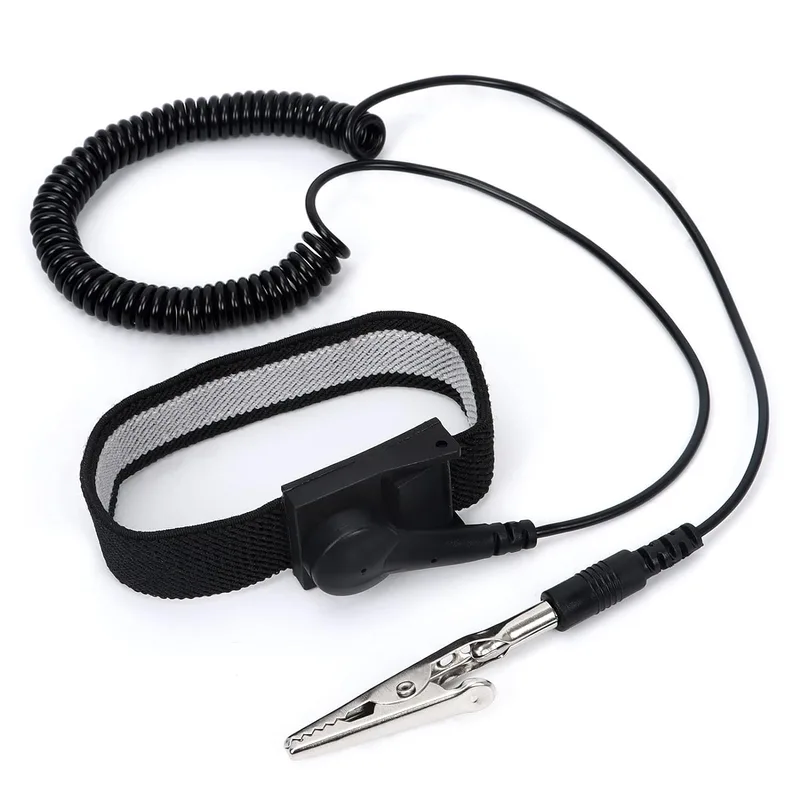
ESD protection costs $9. A damaged DIMM or CPU costs $50-$500. You’re working with static-generating carpet, wool sweaters, and plastic component packaging—grounding yourself before handling hardware is non-negotiable.
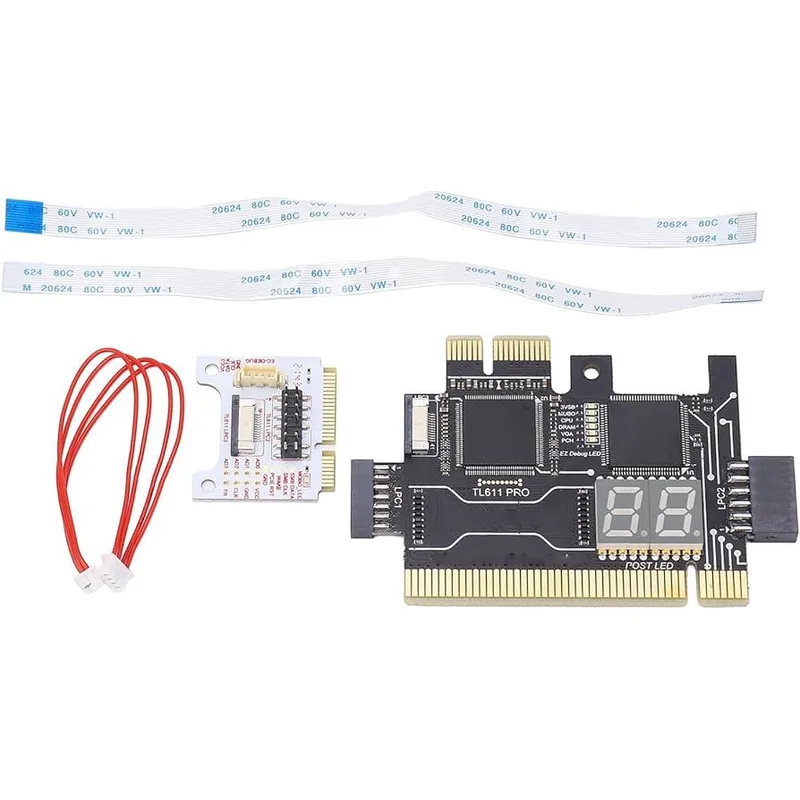
A POST debug card replaces guesswork. When a new build shows no display, you’re otherwise left swapping RAM sticks one by one, reseating the GPU, and clearing CMOS in sequence. A 4-digit POST code tells you exactly which subsystem is failing.
Product Deep Dives
Seasonic Focus GX-850 ATX 3.1
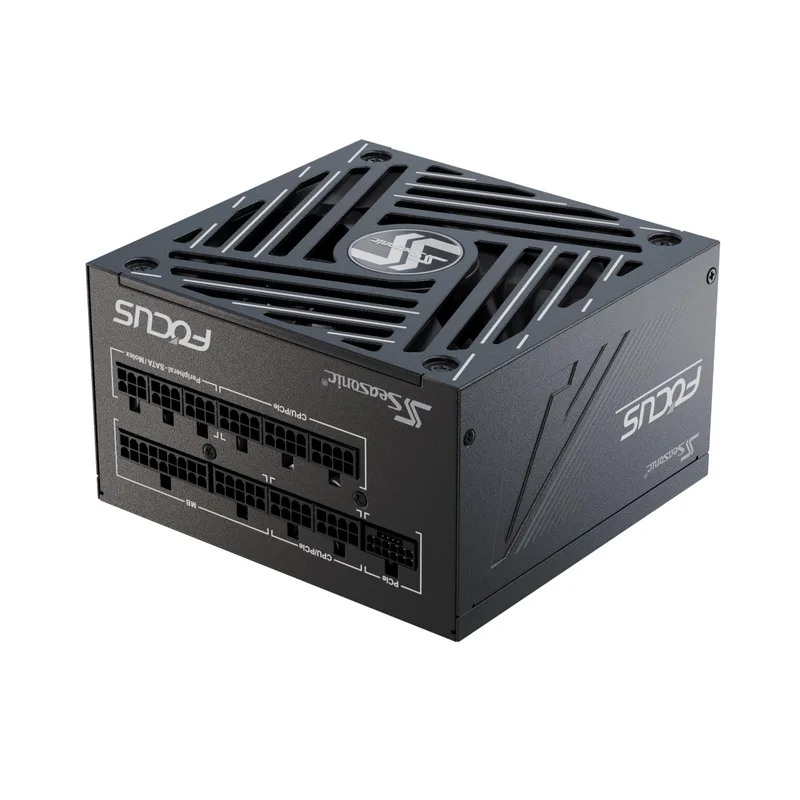
The ATX 3.1 standard requires PSUs to handle transient power spikes of up to 2× the rated wattage for short bursts—critical for GPUs like the RTX 5080 that spike to 575W during frame generation workloads. The Seasonic Focus GX-850 meets this specification and adds Cybenetics Platinum certification for efficiency. Its fully modular design eliminates the unused cable clutter that restricts airflow in sub-$100 PSUs.
At $149, it’s priced above budget 850W units, but Seasonic’s 10-year warranty reflects genuine confidence in their capacitors. Competing units at $80-100 from lesser brands frequently fail at year 2-3 under gaming loads.
Thermal Grizzly Kryonaut
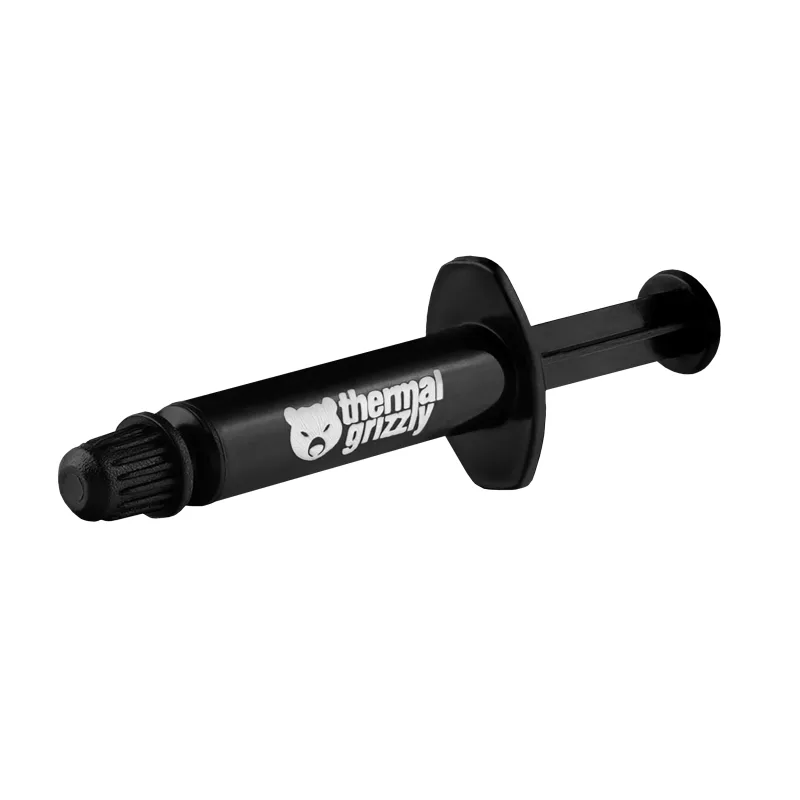
Kryonaut has held its position as the benchmark non-conductive thermal compound since its launch. At 12.5 W/mK thermal conductivity, it outperforms ARCTIC MX-6 (8.2 W/mK) and the MX-4 (8.5 W/mK) that ships with many Noctua coolers. The performance gap is most visible on high-TDP CPUs: a Ryzen 9 9950X running at full 170W load shows a 4°C delta between Kryonaut and a mid-range TIM.
The 1g tube is sufficient for one or two applications. For builders reseating multiple times or working across several systems, the ARCTIC MX-6 4g kit is the better buy.
STREBITO Anti-Static Wrist Strap
STREBITO Anti-Static Wrist Strap
Static electricity discharges as low as 100 volts—well below human perception—can degrade or destroy NAND flash, capacitors, and CPU cores without any visible damage. You may install a “dead” DDR5 module and never know why the system won’t POST. The STREBITO strap uses a 1MΩ inline resistor that equalizes your body’s static charge to ground without creating a shock hazard.
Clip it to an unpainted metal surface on your PC case, plug in the PSU (power switch off), and the case becomes your ground reference. The 6.16 ft coiled cable provides full reach across even E-ATX builds.
TL611 Pro Mainboard Debug Card
TL611 Pro Mainboard Debug Card
Modern motherboards like the ASUS ROG Maximus Z890 Apex and MSI MEG X870E Ace include onboard Q-Code LED displays that serve the same function. If your board lacks this feature, the TL611 Pro plugs into any PCIe x1 slot and reads the same POST codes. Common codes to know: 0d or 0e usually indicates RAM failure; 55 means no memory detected; d6 points to a missing display adapter.
For builders troubleshooting a black screen with no beep codes, this card identifies the failed subsystem in under 10 seconds.
ARCTIC MX-6 (4g + MX Cleaner)
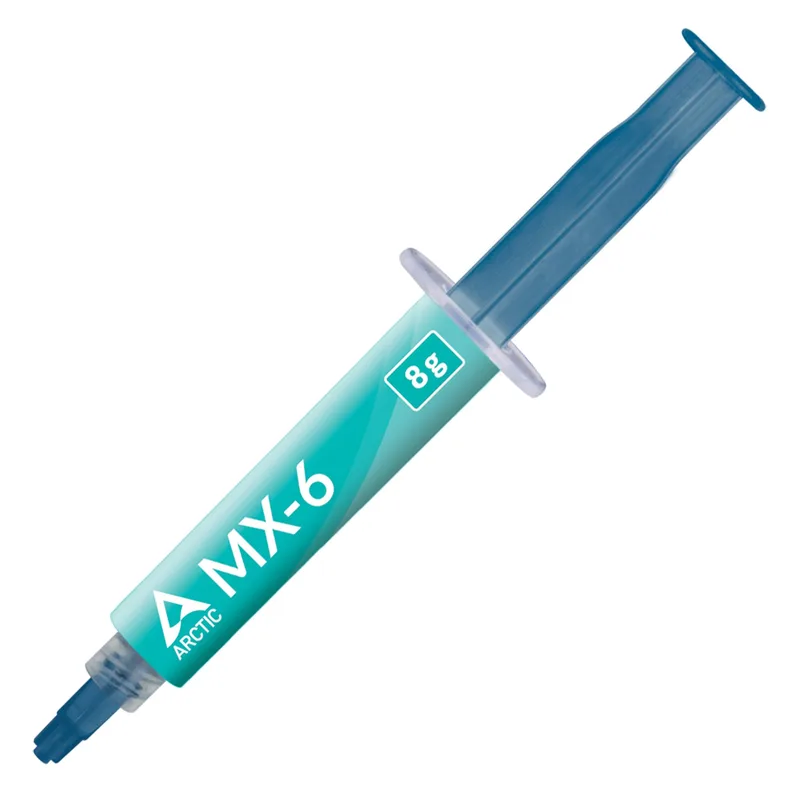
The MX-6 bundle is the practical thermal paste choice for builders who reseat coolers frequently. The 4g tube handles 4-6 full CPU applications, and the six included MX Cleaner pads dissolve old TIM completely—critical before reapplication, since applying fresh paste over degraded old compound negates any thermal benefit.
At 8.2 W/mK, MX-6 runs 2-4°C warmer than Kryonaut on high-TDP processors, but for any CPU running below 150W TDP, the real-world difference is under 2°C. For casual builders and multi-system projects, it’s the smarter purchase.
The 10 PC Building Mistakes to Avoid
Mistake 1: Skipping ESD Grounding
Static discharge is invisible and silent. Walking across carpet in socks, handling components out of their anti-static bags, or working on a glass desk without grounding yourself exposes every component to potential ESD damage. DDR5 modules and modern CPUs are especially vulnerable.
Fix it: Put on an anti-static wrist strap before touching any component. If you don’t have one, keep one hand on the bare metal of your PC case—which you’ve plugged in (PSU switch off) to use the building’s ground via the power cable.
Mistake 2: Wrong RAM Slot Placement
Most dual-channel motherboards have four slots labeled A1, A2, B1, B2. Installing two sticks in A1 and B1 (the innermost slots) instead of A2 and B2 disables dual-channel on most boards, dropping memory bandwidth by up to 40%. On AM5 boards with Ryzen 9000, this also prevents EXPO profiles from applying correctly.
Fix it: Check your motherboard manual’s recommended population order. For two DIMMs, it’s almost universally slots 2 and 4 (A2/B2). The manual specifies it on page one.
Mistake 3: Not Enabling XMP or EXPO
DDR5 kits default to JEDEC base speeds—typically 4800 MT/s—regardless of the rated speed printed on the kit. A 6000 MT/s DDR5 kit bought for Ryzen 9000 will run at 4800 MT/s until you enable AMD EXPO in the BIOS. The Ryzen 7 9800X3D’s 3D V-Cache architecture is particularly sensitive to memory bandwidth; disabling EXPO costs 8-12% gaming performance.
Fix it: After first boot, enter BIOS (usually Delete or F2 at POST), navigate to the AI Overclock Tuner or equivalent, and select XMP (Intel) or EXPO (AMD). Save and exit.
Mistake 4: Skipping the BIOS Update Before Installing a New CPU
On AM5, a B650 or X670 motherboard purchased in 2026 will not recognize Ryzen 9000 series CPUs without a BIOS update—it will simply not POST. The same applies to LGA1851: Z890 boards from different manufacturing dates may require updates for specific Arrow Lake CPU stepping support.
Fix it: Before buying a new CPU for an existing board, verify the BIOS version required and the current shipped version on the vendor’s website. Most boards support BIOS FlashBack—update without a CPU installed using a USB drive. If buying a new board, confirm it ships with a BIOS version that supports your CPU.
Mistake 5: Forgetting the I/O Shield or Installing It After the Motherboard
The rear I/O shield clicks into the case before the motherboard goes in. Forgetting it means uninstalling the fully-cabled motherboard to fit it—a 30-minute setback. Many modern boards (Asus ROG, MSI MEG, Gigabyte Aorus) include a pre-attached I/O shield that ships attached to the motherboard itself, but budget boards still ship them separately.
Fix it: Before placing the motherboard, check whether it has a pre-attached shield. If not, snap the standalone shield into the rear I/O cutout first, then mount the board. The tabs on the shield should press against the board’s port cluster.
Mistake 6: Missing Motherboard Standoffs
Standoffs are the threaded brass spacers that elevate the motherboard off the case floor. Installing a motherboard directly onto the case tray shorts the PCB’s solder points to metal ground, which prevents boot or causes intermittent crashes. Cases ship with standoffs pre-installed for ATX, but MATX or Mini-ITX boards require removing the ones in unused ATX positions.
Fix it: Match standoff positions to your motherboard’s hole pattern before mounting. Your case manual shows standoff positions by form factor. Tighten them snug—not torqued—before laying the board on them.
Mistake 7: Too Much or Too Little Thermal Paste
Excess thermal paste squeezes out past the IHS when the cooler is pressed down, potentially reaching the socket pins—a short risk on LGA platforms where the pins are on the motherboard. Too little leaves air gaps that spike CPU temps by 10-20°C under load, triggering thermal throttle on AMD’s Ryzen 9000X3D chips above 95°C.
Fix it: A pea-sized amount in the center of the IHS is sufficient for most CPU coolers. The cooler’s pressure spreads it when mounted. For direct-die or delid applications, spread it manually with a spatula. Remove the protective film from the cooler base—it’s a clear or white plastic layer that many beginners miss.
Mistake 8: Underpowering Your Build
An RTX 5080 draws 360W at sustained gaming load and spikes to 575W during transient loads. Paired with a Ryzen 7 9800X3D (170W TDP) and system overhead, the total exceeds 800W peaks. A 650W or 750W PSU running above 85% capacity degrades faster, runs louder, and can cause random shutdowns under GPU burst loads.
Fix it: Add your CPU TDP + GPU TBP + 100W for system overhead. For an RTX 5080 + Ryzen 9800X3D build, that’s 170 + 360 + 100 = 630W—minimum 750W, ideally 850W with ATX 3.1 transient headroom. Never use a non-80 Plus certified PSU.
Mistake 9: Connecting GPU Power Incorrectly
RTX 5000 series cards use NVIDIA’s 12V-2x6 connector (replacing the 12VHPWR from RTX 4000). Using adapter cables from two 8-pin connectors is technically supported but introduces the same risk that caused melted connectors on early RTX 4090 builds—if the adapter isn’t fully seated, the connector overheats under sustained GPU load. The RTX 5080 and 5090 TUF/Gaming cards require the connector be seated until it clicks.
Fix it: Use a PSU with a native 12V-2x6 connector. Verify the connector is fully clicked into the GPU receptacle—there should be no gap between the connector housing and the GPU bracket. Never route the cable in a way that bends it sharply immediately after the connection point.
Mistake 10: Ignoring CPU/Motherboard Socket Compatibility
In 2026, AMD uses AM5 for all Ryzen 7000/8000/9000 CPUs. Intel uses LGA1851 for Core Ultra 200 (Arrow Lake) and upcoming Panther Lake. These sockets are completely incompatible—an AM5 CPU will not physically fit an LGA1851 board and vice versa. DDR5 compatibility adds another layer: AM5 is DDR5-only, while some LGA1851 boards support DDR4 on specific models.
Fix it: Verify socket, DDR generation, and chipset compatibility at pcpartpicker.com before purchasing. AM5 + X870E for high-end AMD, AM5 + B650 for mid-range. LGA1851 + Z890 for Intel Core Ultra 200 series. Never assume a previous-generation board is compatible with a newer CPU generation.
What These Mistakes Cost You
| Mistake | Worst-Case Consequence | Severity |
|---|---|---|
| Wrong RAM slots | 40% lower bandwidth, no dual-channel | High |
| Skipping XMP/EXPO | DDR5 runs at 4800 MT/s instead of 6000+ MT/s | High |
| Thermal paste error | +15-20°C CPU temps, sustained thermal throttle | High |
| Underpowered PSU | System crashes, PSU failure, hardware damage risk | Critical |
| Missing BIOS update | CPU not recognized, system fails to POST entirely | Critical |
| No standoffs | Motherboard short, permanent PCB damage | Critical |
| Wrong GPU power connector | Melted connector, GPU damage under sustained load | Critical |
| No ESD protection | Silent DIMM or CPU degradation, intermittent failures | Medium |
| Skipped I/O shield | Rear port exposure, time wasted reinstalling board | Low |
| Socket mismatch | Non-booting system, return shipping costs | Critical |
When to Revisit Your Build
Even a correctly built system needs maintenance over time. Re-apply thermal paste every 2-3 years—Kryonaut and MX-6 degrade past 80°C sustained use and show measurable conductivity loss after 24-36 months on high-TDP chips like the Ryzen 9 9950X.
Update your BIOS whenever a new CPU generation drops on your platform—not to run those CPUs, but because manufacturers backport stability fixes for existing CPU support. ASUS ROG X870E boards have received three BIOS revisions in 2026 alone addressing AM5 power delivery stability under Ryzen 9000X3D workloads.
Check PSU capacity before adding hardware. Going from an RTX 5070 to an RTX 5080 adds roughly 130W to your peak draw. If your PSU was sized for the 5070, recalculate headroom before installing the upgrade.
FAQ
Can I build a PC without an anti-static wrist strap? Yes, but it’s a risk that costs $9 to eliminate entirely. Keep one hand on your plugged-in (power-off) case frame while handling components, work on a wooden or laminate surface, and avoid carpet. A wrist strap is still the correct approach.
How do I know if my AM5 motherboard has the right BIOS for Ryzen 9000? Every major AM5 board vendor lists the minimum BIOS version for each CPU on their compatibility pages. Cross-reference your board’s model against AMD’s supported CPU list before buying. Budget B650 boards sometimes ship with older BIOS versions that don’t support Ryzen 9000 out of the box.
What happens if I mix DDR5 speeds (e.g., 4800 MT/s and 6000 MT/s sticks)? The system will run both sticks at the slower speed—4800 MT/s in this case. XMP/EXPO becomes inaccessible because the kit speeds don’t match. Always pair identical sticks from the same kit; single-stick purchases for expansion should match the existing kit’s manufacturer, speed, and timings exactly.
Is RTX 5000 compatible with B650 motherboards? Yes. Any PCIe 4.0 or 5.0 x16 slot supports RTX 5000 series cards. B650 boards with PCIe 4.0 x16 slots will run an RTX 5090 at PCIe 4.0 speeds, which incurs a 1-3% bandwidth penalty at 4K—effectively unnoticeable. The bottleneck will be your CPU before the PCIe interface.
My system posts but shows nothing on screen. Where do I start? First, verify the display cable is connected to the GPU, not the motherboard’s HDMI/DP port (which routes through the iGPU, disabled when a discrete GPU is present). If that’s correct, reseat the GPU in the primary PCIe x16 slot. If no change, insert the TL611 Pro debug card in a secondary PCIe x1 slot and read the POST code to identify the failed subsystem.
The Bottom Line
The mistakes that kill a first build are overwhelmingly preventable: wrong RAM slots, skipped XMP, missed BIOS updates, and cheap PSUs account for the majority of dead-on-arrival systems in 2026. Spend $9 on an anti-static strap and $10 on Kryonaut before you spend $500 on a GPU. The Seasonic Focus GX-850 ATX 3.1 eliminates PSU-related failures for RTX 5000 builds, and a TL611 Pro debug card removes all guesswork from your first boot. Get these tools right and the hardware will do the rest.