Dust is a slow killer. A gaming PC that runs at 70°C after a fresh build is often hitting 85–90°C two years later — not because the hardware degraded, but because the cooling system is choked with dust. Add dried-out thermal paste to that and you can lose another 5–10°C of thermal headroom. Cleaning your PC on a regular schedule is one of the highest-ROI maintenance tasks you can do, and in 2026, the case for ditching compressed air cans in favor of a rechargeable electric duster has never been stronger.
This guide covers the five tools worth keeping in your cleaning kit, plus a component-by-component walkthrough you can follow start to finish.
| Spec | Metro DataVac ED-500 Electric Duster Unavailable 9.5/10 | Yomile 2-in-1 Cordless Air Duster & Vacuum 8/10 | Thermal Grizzly Kryonaut 1g 9.5/10 | MG Chemicals 99.9% Isopropyl Alcohol (1 Qt) Unavailable 9/10 | OXO Good Grips Electronics Cleaning Brush 8/10 |
|---|---|---|---|---|---|
| Power | 500W / 0.75 HP | — | — | — | — |
| Airflow | 70 CFM | — | — | — | — |
| Cord Length | 12 feet | — | — | — | — |
| Weight | 3 lbs | 1.1 lbs | — | — | — |
| Housing | Steel (Made in USA) | — | — | — | — |
| Rating | 9.5/10 | 8/10 | 9.5/10 | 9/10 | 8/10 |
Prices change daily — tap Check Price for the current Amazon price.
Prices change daily — tap Check Price for the current Amazon price.
Cleaning Toolkit at a Glance
| Tool | Best For | Price |
|---|---|---|
| Metro DataVac ED-500 | Primary dusting — cases, coolers, GPUs | Unavailable |
| Yomile 2-in-1 Cordless Duster | Budget/cordless dusting + vacuuming | Check price |
| Thermal Grizzly Kryonaut 1g | CPU/GPU thermal paste reapplication | Check price |
| MG Chemicals 99.9% IPA (1 Qt) | Removing old thermal paste, cleaning contacts | Unavailable |
| OXO Good Grips Electronics Brush | Fan blades, vents, ports, keyboard | Check price |
Total toolkit cost: under $115 — and every item lasts for years of cleanings.
Why These Tools
Electric duster over compressed air cans. Compressed air cans cost $10–14 each and run out of pressure within a few minutes of use. A single can rarely cleans a full system. The DataVac ED-500’s 70 CFM motor never loses pressure and has been the go-to recommendation among PC builders for over a decade. For anyone who cleans a PC twice a year, an electric duster pays for itself in under a year.
Cordless duster for flexibility. The Yomile 2-in-1 at $25 is what PCWorld recommended as their “saves me a ton on compressed air” pick earlier in 2026. It adds vacuum functionality — useful when you’re cleaning on a desk and want to collect the dust you blow out rather than coat the surrounding area.
Thermal paste matters more than most people think. Original equipment thermal paste (the stuff applied at the factory or included with a boxed cooler) dries out within 2–3 years. Once it crusts and pulls away from the CPU’s integrated heat spreader, you can see 10–15°C temperature increases under sustained load. Kryonaut at 12.5 W/mK handles this better than any bundled paste.
99.9% IPA for thermal paste removal. Lower-purity isopropyl alcohol (70%, 91%) leaves water and contaminants behind on CPU contact surfaces. MG Chemicals’ 99.9% grade evaporates completely in under 30 seconds and is what electronics manufacturers use for board cleaning. One bottle handles years of cleanings.
A brush for the gaps. The OXO brush covers the cleaning jobs where air pressure isn’t enough — stubborn dust clumps baked onto fan blades, debris wedged in I/O shield openings, and dust filters with fine mesh. Five dollars.
Tool Reviews
Metro DataVac ED-500
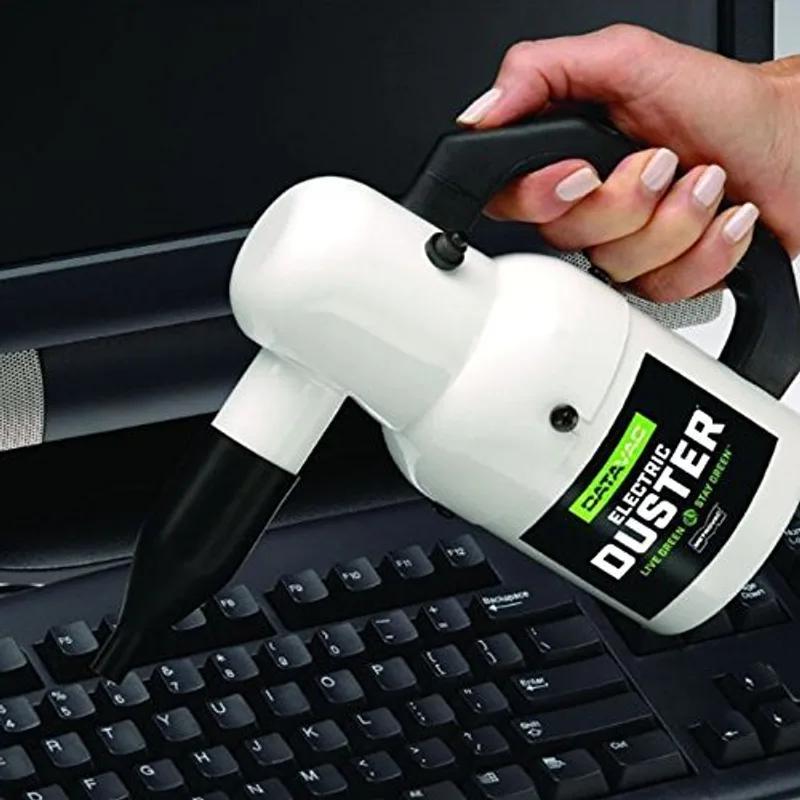
Metro DataVac ED-500 Electric Duster
The DataVac ED-500 is a 500W corded electric duster made in the USA. Its 0.75 HP motor pushes 70 CFM of air through a 12-foot cord, and the steel housing means it won’t crack or warp like the plastic competitors. The six included attachments — air-pin pointer, concentrator, air-flare, and a four-piece detailing set — cover every scenario from GPU heatsink channels to PSU vents.
The main advantage over compressed air cans is sustained pressure. Hold the trigger on a can for 45 seconds and pressure drops noticeably; the DataVac delivers the same 70 CFM from start to finish. According to owner reports across thousands of reviews, many units are still working after 10+ years of twice-yearly cleaning sessions — that’s 20+ cleanings from a single purchase.
One legitimate con: it’s loud. At full blast the DataVac runs around 85 dB, which is “do this outside or in the garage” territory if you’re in an apartment. Use short bursts and hold fans stationary with a finger or pencil so the blades don’t overspin and damage bearings.
Yomile 2-in-1 Cordless Air Duster & Vacuum
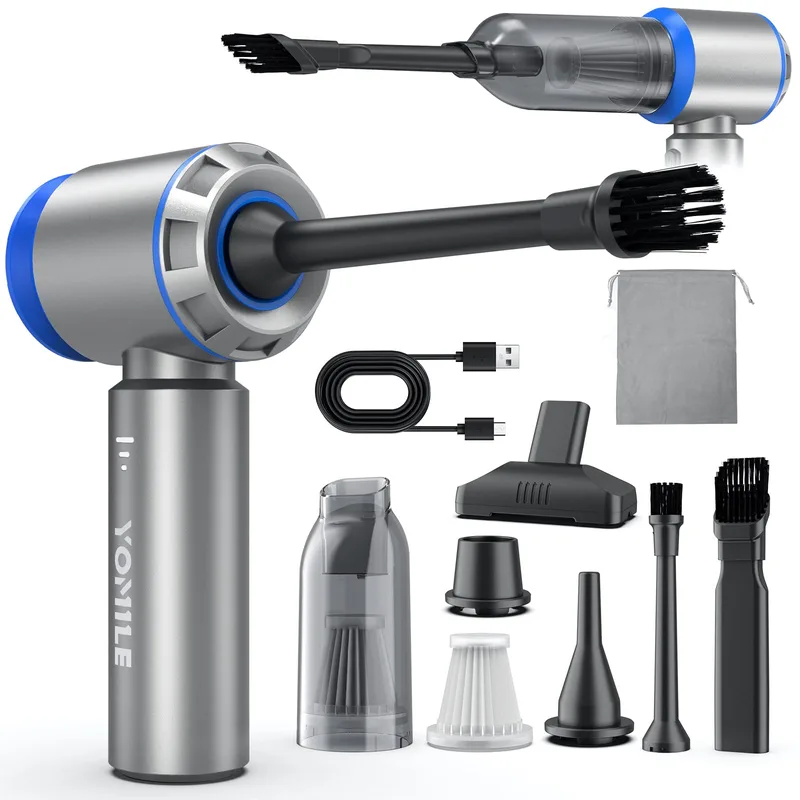
Released in 2025, the Yomile 2-in-1 runs a 180,000 RPM brushless motor on a 9,000 mAh battery. PCWorld highlighted it earlier in 2026 as the product that replaces disposable compressed air cans for most users — the $25 price point is below what two cans of Dust-Off cost at many retailers.
The vacuum mode is genuinely useful. When you blow dust off a GPU heatsink while the case is sitting on your desk, that dust goes somewhere — usually onto your monitor or carpet. Switching the Yomile to vacuum mode and running it over the case interior after blowing collects the loose debris before it settles. The LED light makes it easier to see inside dark cases with no window lighting.
The tradeoff versus the DataVac is airflow volume. For a PC that hasn’t been cleaned in 18 months with heavy radiator dust buildup, the DataVac’s 70 CFM will clear it faster. For regular quarterly cleanings where accumulation is light, the Yomile handles the job completely.
Thermal Grizzly Kryonaut 1g
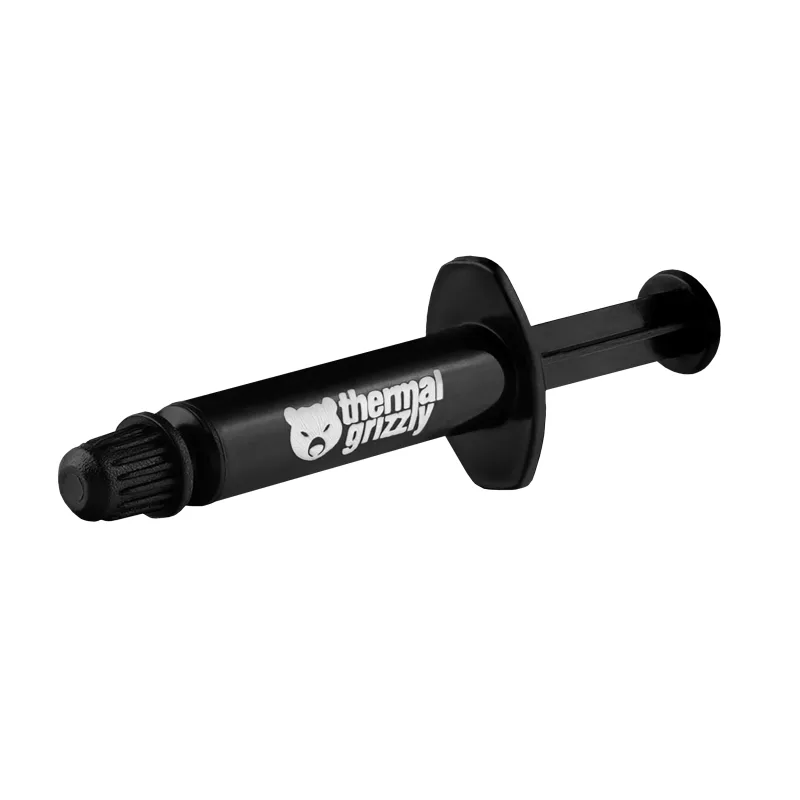
Kryonaut is the standard recommendation for CPU and GPU thermal interface replacement. Its 12.5 W/mK thermal conductivity is among the highest for non-metal, non-phase-change pastes — independent hardware reviews consistently show it 3–8°C below stock cooler paste and 1–2°C below Arctic MX-6 on a per-gram basis.
The 1g tube is enough for 2–3 CPU applications with correct technique (a pea-sized dot, no spreading required — the IHS contact pressure distributes it). If you’re servicing multiple PCs or want stock on hand, the 11.1g tube is more economical. Kryonaut doesn’t electrically conduct, which matters if you apply slightly too much — any squeeze-out around the CPU IHS won’t cause shorts.
When to replace thermal paste: CPU package temperatures that have increased 8°C or more from baseline at the same load, or any PC that hasn’t been serviced in 3 years regardless of temps.
MG Chemicals 99.9% Isopropyl Alcohol (1 Qt)
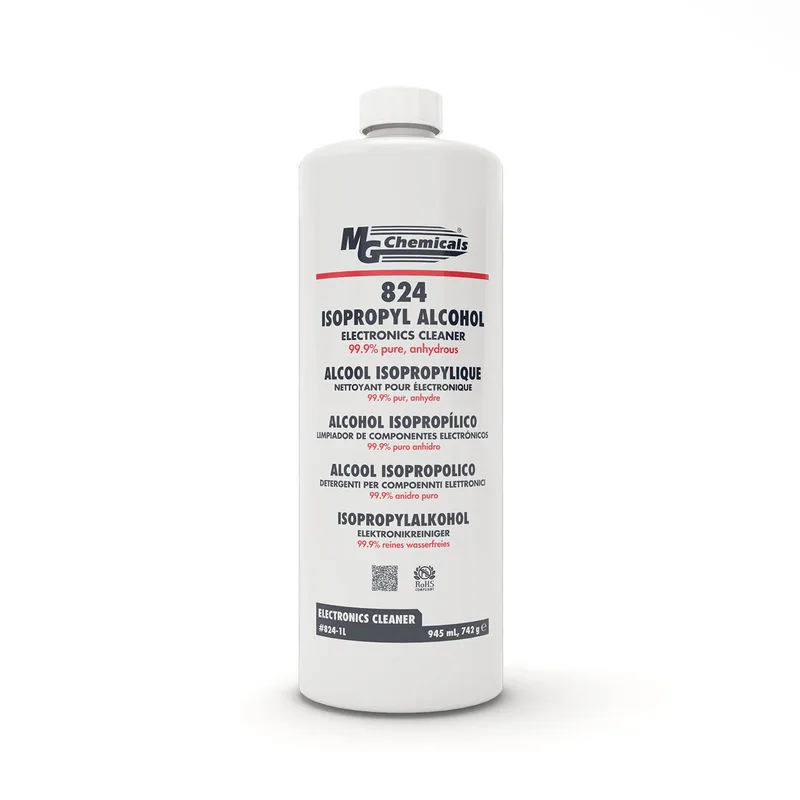
MG Chemicals 99.9% Isopropyl Alcohol (1 Qt)
The first step in thermal paste replacement is removing the old paste, and purity matters here. 70% IPA contains 30% water — it leaves microscopic residue on the polished CPU IHS and heatsink base that increases thermal resistance. MG Chemicals’ 99.9% grade evaporates completely, leaving the surfaces clean and dry within 30 seconds.
Apply it with a lint-free cloth, a lint-free cotton swab, or a coffee filter — all three work. Start with a dry wipe to remove bulk paste, then apply IPA to a fresh cloth for the final clean. For GPU die-direct coolers (cards where the heatsink contacts the die itself rather than an IHS), the 99.9% purity requirement is even more important because the die surface area is smaller and any contamination shows up directly in thermal performance.
One quart handles years of cleaning sessions. Store it sealed in a cool location — IPA absorbs water from air over time, which gradually degrades its purity.
OXO Good Grips Electronics Cleaning Brush
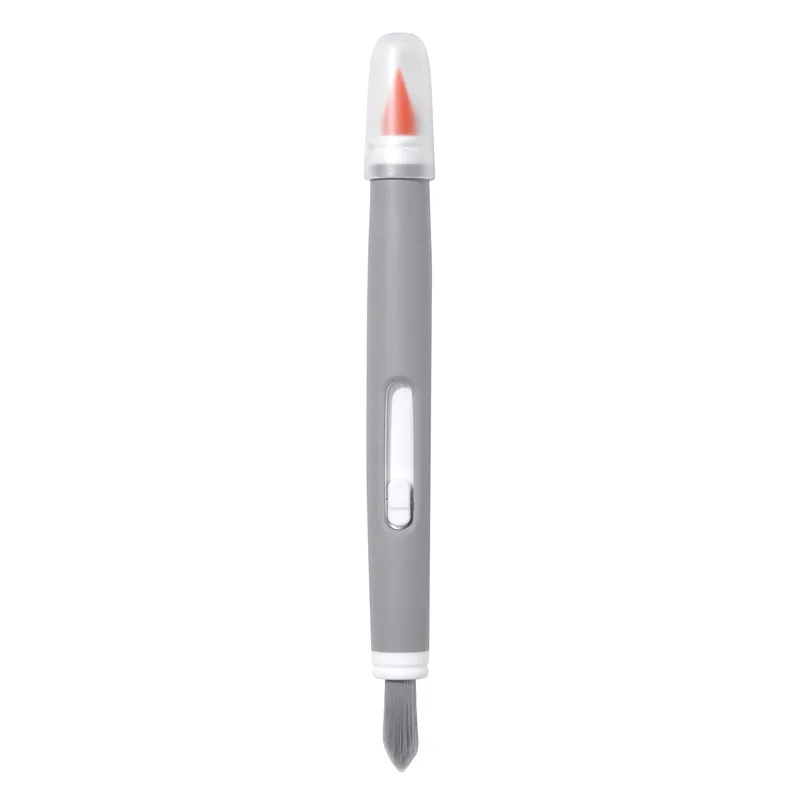
OXO Good Grips Electronics Cleaning Brush
Five dollars buys a dual-purpose brush that handles the cleaning jobs where air pressure falls short. The stiff nylon bristle end agitates dust baked onto fan blade surfaces — especially the leading edge buildup that air alone doesn’t dislodge. The retractable silicone wiper cleans case vent mesh, I/O shield openings, and monitor bezel gaps without scratching.
Use it dry. The silicone wiper is effective on port openings, USB-A slots, and display output openings where debris accumulates without any cleaning fluid. For fan blades, the bristle end followed by a blast from the electric duster removes the stubborn residue that forms from dust-oil accumulation near bearing housings.
Keep it away from bare silicon — the bristles aren’t anti-static rated, and dragging them across GPU die surfaces or unprotected VRM components creates static discharge risk. For any direct ICS contact cleaning, use IPA and a lint-free swab instead.
Step-by-Step PC Cleaning Process
Preparation
Power down completely and unplug from the wall — not just sleep or hibernate. Full power removal is required because some motherboards maintain standby voltage to USB ports even when “off.” Move the PC to a table or workbench outdoors or near an open window. Dust you blow out of the case has to go somewhere.
Tools to have ready:
- Electric duster (DataVac or Yomile)
- OXO brush
- MG Chemicals IPA + lint-free swabs (if doing thermal paste)
- Thermal Grizzly Kryonaut (if replacing paste)
- Microfiber cloth for wiping case exterior
Step 1: Dust Filters
Remove all dust filters before blowing anything. Most cases have magnetic or slide-out filters on the front, top, and PSU intake. Tap them gently over a trash can, then use the OXO brush bristle end to loosen any packed dust. If filters are foam or fine mesh, rinse them with water and let them dry completely before reinstalling.
Step 2: Case Interior — First Pass
With the side panel off, do a sweeping pass with the electric duster on low (if adjustable) or at a controlled distance. Start at the top and work down — gravity and airflow carry loosened dust toward the bottom. Hold all fans stationary with a finger or pencil while blowing through them. Fan bearings are not rated to spin at the RPMs that a 70 CFM duster can drive them.
Focus extra time on:
- Radiator fin stacks (AIO liquid coolers or large air coolers)
- GPU heatsink fin channels — angle the duster nozzle through the fin channels perpendicular to the fins
- PSU intake grille — blow from the outside in, not the inside out
- Motherboard VRM heatsinks and chipset heatsink
- Case floor near PSU intake (usually the highest dust concentration)
Step 3: OXO Brush Pass
Use the bristle end on fan blades where edge buildup remains after blowing. The leading edge of each blade accumulates a hard layer from oil vapor in the air mixing with dust — this won’t blow off but does scrub off with a stiff brush. One pass around each fan blade, then one more blow-through with the duster to clear the dislodged material.
Step 4: Vacuum Pass (If Using Yomile)
Switch the Yomile to vacuum mode and make a slow pass over the case interior, motherboard tray, and cable management area. This collects the dust suspended in air after the blowing step rather than letting it resettle on components.
Step 5: Thermal Paste (Every 2–3 Years or When Temps Spike)
If this is a deep-clean or your CPU temps have increased by 8°C or more from baseline:
- Remove the CPU cooler (unfasten bracket hardware in a cross pattern).
- Dry-wipe bulk paste off the CPU IHS and cooler base with a dry lint-free cloth.
- Apply MG Chemicals IPA to a clean lint-free cloth or coffee filter. Wipe the CPU IHS in circular motions until no gray residue remains on the cloth. Repeat on the cooler base.
- Let both surfaces air-dry for 60 seconds.
- Apply a pea-sized dot of Kryonaut to the center of the CPU IHS — no spreading needed.
- Reinstall the cooler, fastening the bracket hardware in a cross pattern to ensure even pressure.
Monitor temps on the first boot — within 5 minutes of load, CPU junction temperatures should be lower than pre-cleaning baseline.
Step 6: Case Exterior and I/O
Wipe the case exterior with a dry or lightly damp microfiber cloth. Use the OXO silicone wiper on vent mesh panels, USB-A port openings (remove any accumulated lint), and the I/O shield openings. Use a dry lint-free swab in 3.5mm audio jacks if they’ve accumulated debris.
How Often to Clean
| Cleaning Type | Interval | What It Covers |
|---|---|---|
| Dust filter cleaning | Every 4–6 weeks | Removes surface filter buildup before it restricts airflow |
| Light dusting | Every 3 months | Fan blades, case interior, case exterior |
| Full interior clean | Every 6 months | All components, dust filters, I/O ports |
| Thermal paste replacement | Every 2–3 years | CPU, GPU (if GPU temps have risen) |
Shorter intervals for: homes with pets, carpeted rooms, smokers, or dusty environments. Longer intervals are possible with high-quality dust filters, positive pressure case fan configuration, and hardwood or tile floors.
Advanced: Cleaning GPU Thermal Paste
GPU cooling follows the same process as CPU, with one difference: most modern GPUs use thermal pads, not thermal paste, on the VRAM chips and VRM components around the main die. Don’t remove or replace these pads unless you know the exact replacement thickness — using pads that are too thin creates air gaps, and pads that are too thick prevent the GPU cooler from seating correctly.
For the main GPU die, replacing the thermal paste every 3 years is worthwhile on high-end cards. GPUs regularly run at 80–85°C by design, and paste degradation at those temperatures happens faster than on CPUs. Arctic MX-6 or Thermal Grizzly Kryonaut both work well. Consult your specific GPU’s disassembly guide before removing the heatsink, as some cards use torque-sensitive screws and plastic clips that crack under excess force.
FAQ
Can I use a regular air compressor to clean my PC? Standard shop air compressors output moisture with the air — invisible water droplets that land on PCBs and can cause corrosion over time. They also produce much higher pressure than is safe for delicate components. A dedicated electric duster like the DataVac uses dry air at controlled pressure. If you must use a compressor, install a moisture trap and pressure regulator before the nozzle, and keep pressure below 30 PSI.
Is 70% isopropyl alcohol OK for removing thermal paste? 70% IPA contains 30% water. It will remove paste, but it leaves residue on the CPU IHS and heatsink base that reduces thermal contact quality. Use 90%+ for electronics cleaning; 99% is the standard for PCB-level work. The price difference between 70% and 99% IPA is minimal — there’s no reason to use the lower grade.
How do I know if my thermal paste needs replacing? Log your CPU package temps under a sustained load test (Prime95 or Cinebench R23 all-core for 10 minutes). If temps are 8°C or more above what they were when the system was new at the same ambient temperature and the same cooler, degraded paste is a likely contributor. Clean fans, full airway inspection, and reapplication in order.
Should I clean my PSU internally? No. PSUs contain capacitors that store high-voltage charge even after being unplugged. Blow compressed air through the PSU exhaust from the outside to clear dust from the internal fan and heatsinks. Never open the PSU case.
What temperature should I aim for after cleaning? For most consumer CPUs: idle under 40°C, gaming load under 80°C, sustained all-core under 85°C. For GPUs: gaming under 83°C for the junction temp, memory under 95°C. These are targets at stock clocks in a well-ventilated case — the exact numbers vary by chip, cooler, and ambient temperature.
The Bottom Line
A full PC cleaning kit costs under $115 total, and the most important item — a quality electric duster — replaces the ongoing cost of compressed air cans within the first year. Dust the interior every 3 months, do a full deep clean every 6, and replace thermal paste every 2–3 years. The Metro DataVac ED-500 handles the heavy lifting for corded use; the Yomile 2-in-1 is the value pick for anyone who prefers cordless or wants vacuum capability. Pair either with Thermal Grizzly Kryonaut and MG Chemicals 99.9% IPA for thermal maintenance and your system’s temperatures will stay close to day-one specs indefinitely.