DDR5 prices climbed sharply in 2026 as AI data-center demand absorbed DRAM supply — a 32GB kit that sold for $80 in mid-2025 now costs $390–$490 depending on speed and timings. Before you pay that premium, installing the kit correctly matters: wrong slots, no XMP/EXPO activation, or mismatched platform profiles can cut your memory bandwidth by 30% or drop effective speed from 6000 MT/s to 4800 MT/s. This guide covers physical installation, slot selection, BIOS activation, and the five best DDR5-6000 32GB kits available in July 2026.
| Spec | G.Skill Trident Z5 Neo RGB DDR5-6000 32GB CL30 9.4/10 | Kingston FURY Beast DDR5-6000 32GB CL30 AMD EXPO 9.1/10 | Corsair Vengeance DDR5 32GB 6000MHz CL36 Intel XMP Unavailable 8.9/10 | TeamGroup T-Force Delta RGB DDR5-6000 32GB CL30 9/10 | G.Skill Ripjaws S5 DDR5-6000 32GB CL30 Intel XMP Unavailable 8.8/10 |
|---|---|---|---|---|---|
| capacity | 32GB (2x16GB) | 32GB (2x16GB) | 32GB (2x16GB) | 32GB (2x16GB) | 32GB (2x16GB) |
| speed | DDR5-6000 MT/s | DDR5-6000 MT/s | DDR5-6000 MT/s | DDR5-6000 MT/s | DDR5-6000 MT/s |
| timings | CL30-38-38-96 | CL30-36-36-96 | CL36-38-38-76 | CL30-38-38-96 | CL30-40-40-96 |
| voltage | 1.35V | 1.35V | 1.35V | 1.35V | 1.35V |
| profiles | AMD EXPO + Intel XMP 3.0 | AMD EXPO | Intel XMP 3.0 | Intel XMP 3.0 + AMD EXPO | Intel XMP 3.0 |
| rgb | RGB heatspreader | No RGB (low-profile) | No RGB | Full-length RGB diffuser | No RGB (matte black) |
| Rating | 9.4/10 | 9.1/10 | 8.9/10 | 9/10 | 8.8/10 |
Prices change daily — tap Check Price for the current Amazon price.
Prices change daily — tap Check Price for the current Amazon price.
Quick Picks
- AM5 (Ryzen 7000/9000) builders: G.Skill Trident Z5 Neo RGB DDR5-6000 CL30 — tightest timings with EXPO support. If you want to save $90, the Kingston FURY Beast CL30 EXPO matches it in real-world gaming.
- Intel LGA1851/1700 builders: G.Skill Ripjaws S5 DDR5-6000 CL30 — lowest profile, best price among CL30 Intel-validated kits.
- RGB priority: TeamGroup T-Force Delta DDR5-6000 CL30 — dual XMP/EXPO with the best full-length RGB implementation at this speed tier.
Before You Install: What You Need to Know
DDR5 vs. DDR4 — No Backward Compatibility
DDR5 and DDR4 are physically incompatible. DDR5 DIMMs have a notch shifted toward the center of the module; DDR4 DIMMs have the notch offset to one side. The slots are not interchangeable — a DDR5 stick physically cannot insert into a DDR4 socket, and vice versa. If your motherboard predates AMD Ryzen 7000 (AM5) or Intel 12th gen (LGA1700), it uses DDR4.
Verify your board’s generation before purchasing: check the PCB marking near the DIMM slots (most boards print “DDR5” on the slot labels), or look up your motherboard model’s spec page.
Dual-Channel vs. Single-Channel — 30% Bandwidth Difference
Modern CPUs — Ryzen 9000 and Core Ultra 200S included — have dual-channel memory controllers. Populating two slots in the correct pair activates dual-channel mode, which doubles the memory bus width from 32-bit to 64-bit per channel and delivers roughly 30% higher bandwidth than single-channel.
The catch: the two “correct” slots are not the ones next to each other. On most ATX and mATX motherboards with four slots, the correct dual-channel pair is slots A2 and B2 — the second and fourth slots from the CPU socket. Your manual marks these; they are usually the same color.
Installing two sticks side by side in slots A1 and A2 puts both modules in the same channel and cuts bandwidth in half compared to the correct configuration. Always check your manual.
ESD — Static Can Kill a $400 RAM Kit
Electrostatic discharge (ESD) can damage DRAM cells without leaving a visible mark. The module may pass initial POST and show degraded stability only under sustained load. Before handling sticks:
- Unplug the PSU’s power cord from the wall outlet (not just the soft-off switch).
- Touch a metal part of the PC case to discharge any body static.
- Handle sticks by their edges — avoid touching the gold contact fingers or ICs.
An anti-static wrist strap connected to the case chassis provides continuous grounding and is worth $8 for a kit that costs $400+.
Step-by-Step RAM Installation
Step 1: Power Down Completely
Shut down the PC and switch off the PSU rocker switch on the back. Unplug the power cable from the wall. Modern ATX PSUs maintain 5V standby on the board even in soft-off state — unplugging eliminates that entirely.
Step 2: Locate the Correct DIMM Slots
Open your case and find the DIMM slots — the long vertical slots adjacent to the CPU socket. On a four-slot board:
- Slots are labeled A1, A2 (channel A) and B1, B2 (channel B) from the CPU outward.
- For 2 sticks: use A2 and B2 (the second and fourth slots from the CPU). These are usually a matching color.
- For 4 sticks: populate all four slots.
- For 1 stick: slot A2 (closest to the CPU of the A-channel pair) runs single-channel; add a second stick to B2 later for dual-channel.
Some motherboards label slots differently — the MSI MAG B850 Tomahawk MAX uses DIMMA2/DIMMB2 explicitly; ASUS boards often color-code A2/B2 in the secondary color. Consult your manual if you’re uncertain.
Step 3: Open the Retention Clips
Each DIMM slot has one or two retention clips — plastic tabs that lock the stick in place. Depending on your motherboard:
- Two-clip designs (common on budget/mid-range boards): press both outward simultaneously.
- One-clip designs (common on high-end boards with limited clearance): one end is fixed; press only the free clip outward.
The clips open with moderate finger pressure. Do not force them — they snap into position and snap back out cleanly. If resistance is significant, you may have the wrong slot orientation.
Step 4: Align and Seat the Module
Hold the DDR5 stick by its edges. The module has a notch in the gold contact area — locate it, then align it with the raised key in the DIMM slot. The notch is asymmetric: if you have the stick backwards, it will not insert.
Lower the module straight down into the slot. Apply even downward pressure across both ends simultaneously — not a rocking motion. The stick requires more force than DDR4; Hynix A-die DDR5 ICs in particular need firm, steady pressure. You will hear and feel the retention clip(s) click into place.
Verify both ends are seated flush with the slot — a partially inserted module that passes POST will cause random stability issues under load.
Step 5: Cable Clearance Check
Before closing the case, confirm no cables cross over the DIMM area. A 24-pin ATX cable routed carelessly can impede DIMM removal later. This is also the moment to check CPU cooler clearance — a Noctua NH-D15 G2’s fan may overlap the A1 slot, but A2 (the slot you’re using) is typically clear.
Step 6: Power On and Check POST
Reconnect the power cable, switch the PSU back on, and power the system. On first boot with new RAM:
- The system may pause at the BIOS splash screen during memory training — this is normal for DDR5, especially on first boot.
- If the system posts to BIOS/Windows, memory is detected. Confirm the BIOS shows the correct total capacity (32GB for a 2×16GB kit).
- If the system does not post (no display, diagnostic LEDs), the most common causes are: module not fully seated, wrong slots, or module incompatible with current BIOS version.
Step 7: Enable XMP or EXPO in BIOS
This is the single most important step builders skip. Out of the box, DDR5 runs at JEDEC default speed — 4800 MT/s (one module) or 4400 MT/s (two modules) on most platforms. A kit rated DDR5-6000 CL30 will boot at 4800 MT/s until you activate the profile.
On AMD AM5 boards:
- Enter BIOS (press Delete or F2 at POST — varies by board).
- Navigate to the memory/OC section: ASUS calls it “Ai Tweaker,” MSI calls it “OC,” Gigabyte calls it “MIT,” ASRock calls it “OC Tweaker.”
- Find the EXPO/XMP dropdown. Select “EXPO Profile 1” for AMD EXPO kits, or “XMP Profile 1” for XMP kits.
- Save and exit (F10). The system will reboot and run at rated speed.
On Intel Z890/Z790/B760 boards:
- Enter BIOS (Delete at POST).
- Find the XMP dropdown in the memory section. Select “XMP Profile 1” (DDR5-6000).
- Save and exit.
After reboot, confirm in BIOS or CPU-Z that the speed reads 6000 MT/s (or 3000 MHz — DDR5 reports double data rate, so DDR5-6000 = 3000 MHz in some tools).
If you have a kit with both EXPO and XMP profiles (the G.Skill Trident Z5 Neo, TeamGroup T-Force Delta), select EXPO on AMD boards and XMP on Intel boards. EXPO is tuned specifically to AMD’s memory controller and typically offers marginally tighter sub-timings.
Compatibility Notes
Ryzen 9000 (AM5) optimal speeds: DDR5-6000 is AMD’s Infinity Fabric 1:1 ratio. Running DDR5-6400 or higher forces a 1:2 ratio that can reduce effective bandwidth — only boards with strong signal integrity and tight sub-timings overcome this. For most builds, DDR5-6000 CL30 is the correct stopping point.
Core Ultra 200S (Arrow Lake / LGA1851): Intel’s memory controller handles DDR5-6400 comfortably and supports up to DDR5-9600 on validated kits with Z890 boards. DDR5-6000 runs well here too — the marginal bandwidth from 6400 vs. 6000 at 1440p gaming is 0–2 FPS per Hardware Unboxed testing.
BIOS version matters: Memory compatibility lists (QVL) are updated with each BIOS revision. If a new kit fails to train at rated speed, update the motherboard BIOS before assuming the kit is defective. A board shipping in 2024 with its factory BIOS may not recognize 2026 DRAM modules correctly.
XMP-only vs. EXPO-only vs. dual-profile:
- AMD builders: require EXPO or manual tuning. XMP-only kits (Ripjaws S5, Corsair Vengeance standard) will run DDR5-6000 only if the board’s A-XMP or manual profile matches.
- Intel builders: XMP 3.0 is the standard. EXPO kits still work on Intel but the EXPO profile may not appear — use XMP or manual settings.
- Dual-profile kits (G.Skill Trident Z5 Neo, TeamGroup T-Force Delta): platform-agnostic, recommended for cross-platform upgrades.
Component Deep Dives
1. G.Skill Trident Z5 Neo RGB DDR5-6000 32GB CL30
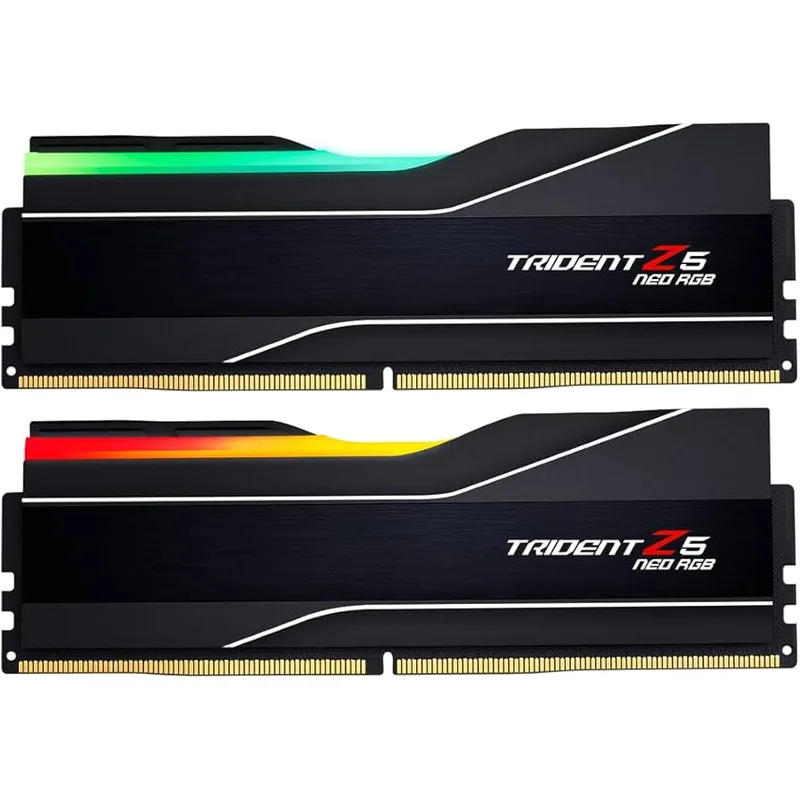
The G.Skill Trident Z5 Neo RGB uses Samsung B-die or equivalent top-bin Hynix A-die depending on production run — both hit CL30 at DDR5-6000. The 1.35V operating voltage is conservative enough for daily operation without thermal concerns on standard motherboard power delivery.
At DDR5-6000 CL30, owner reports document roughly 4% better average 1% lows compared to CL36 at the same clock speed. In F1 24 and Call of Duty: Warzone at 1440p, that equates to 3–6 extra frames in the low-end frametimes — relevant for high-refresh gaming where 1% lows determine perceived smoothness.
The Infinity Fabric runs 1:1 at 6000 MT/s on AM5 without any manual tuning — install, enable EXPO, boot. AMD explicitly validated this kit for Ryzen 9000-series boards.
2. Kingston FURY Beast DDR5-6000 32GB CL30 AMD EXPO
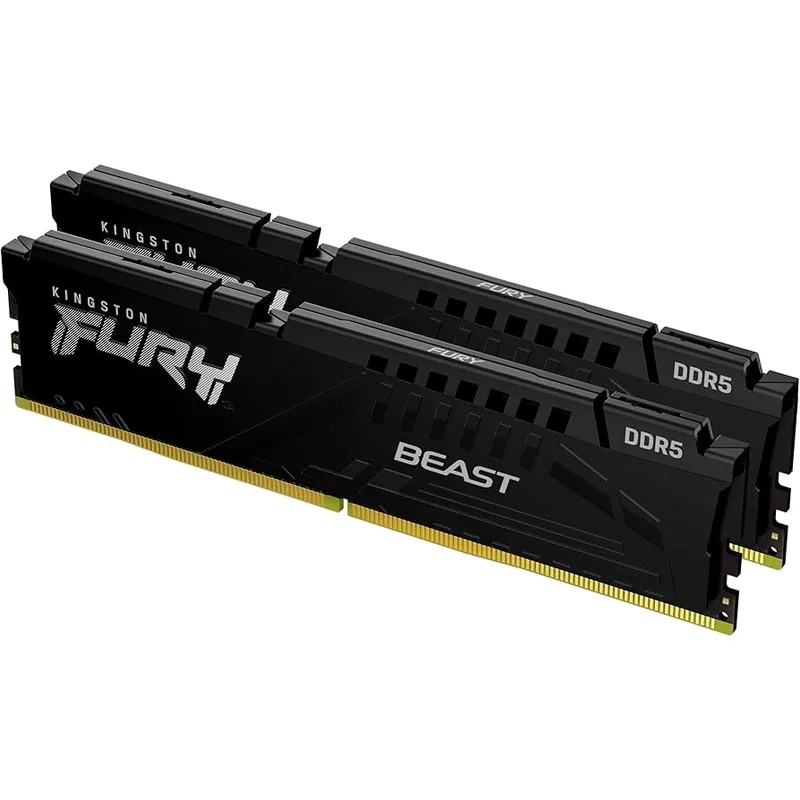
The Kingston FURY Beast DDR5-6000 CL30 is the correct answer for AM5 builds where RGB is not a priority and $50 in savings matters. CL30 timings are identical to the G.Skill — real-world performance is indistinguishable in gaming benchmarks at the same speed.
Kingston’s Plug N Play feature auto-detects EXPO on compatible AM5 boards and trains at 6000 MT/s without entering the BIOS on some boards. Gigabyte X870 and ASUS ROG X870E boards have demonstrated auto-profile behavior with this kit per owner forum reports.
The 34mm heatspreader height clears even tight AIO mounting configurations including the Lian Li Galahad II Trinity 360. For mini-ITX AM5 builds like the ASUS ROG Strix X870-I or ASRock B850I, clearance to the radiator mount is always worth checking — this kit passes on every commonly paired mini-ITX board.
3. Corsair Vengeance DDR5 32GB 6000MHz CL36 Intel XMP
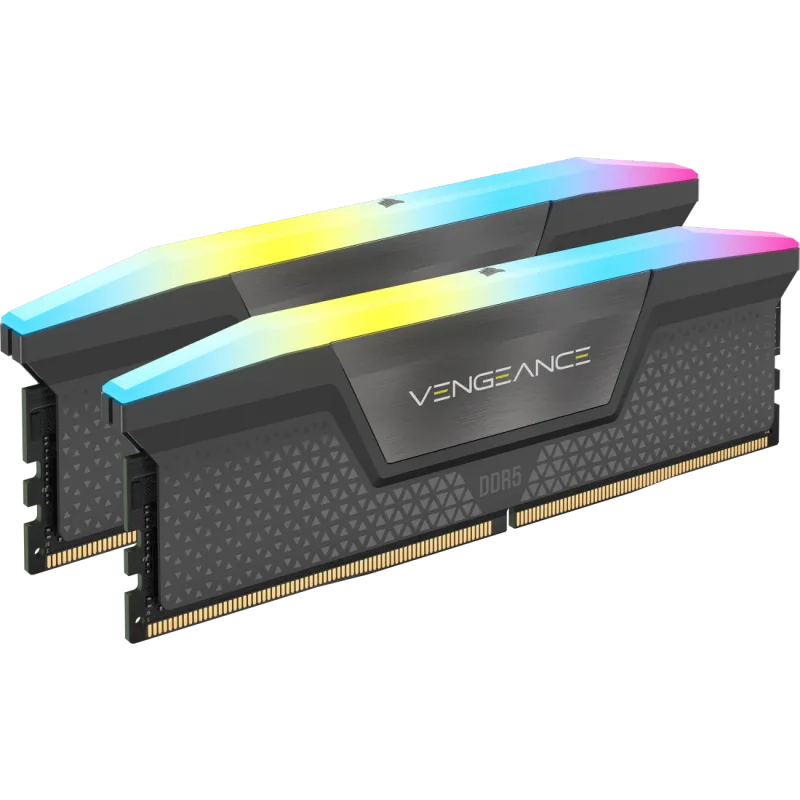
Corsair Vengeance DDR5 32GB 6000MHz CL36 Intel XMP
The Corsair Vengeance DDR5 6000MHz CL36 is the default recommendation for Intel LGA1851 (Core Ultra 200S) and LGA1700 (13th/14th gen) builds where EXPO is irrelevant. Intel’s XMP 3.0 implementation on Z890 and Z790 boards handles this kit without issue.
The CL36 penalty vs. CL30 at DDR5-6000 amounts to roughly 6ns of additional access latency. In CPU-bound competitive titles at 1080p — CS2, Valorant, Apex Legends — Hardware Unboxed measured 0–3 FPS difference between CL30 and CL36 kits at the same DDR5-6000 speed. For content creation workloads (Blender, Handbrake, DaVinci Resolve), CL timings at the same frequency are effectively noise compared to bandwidth.
Intel builders who want tighter latency should look at the Ripjaws S5 CL30 at $420, which closes the gap while keeping profile compatibility.
4. TeamGroup T-Force Delta RGB DDR5-6000 32GB CL30
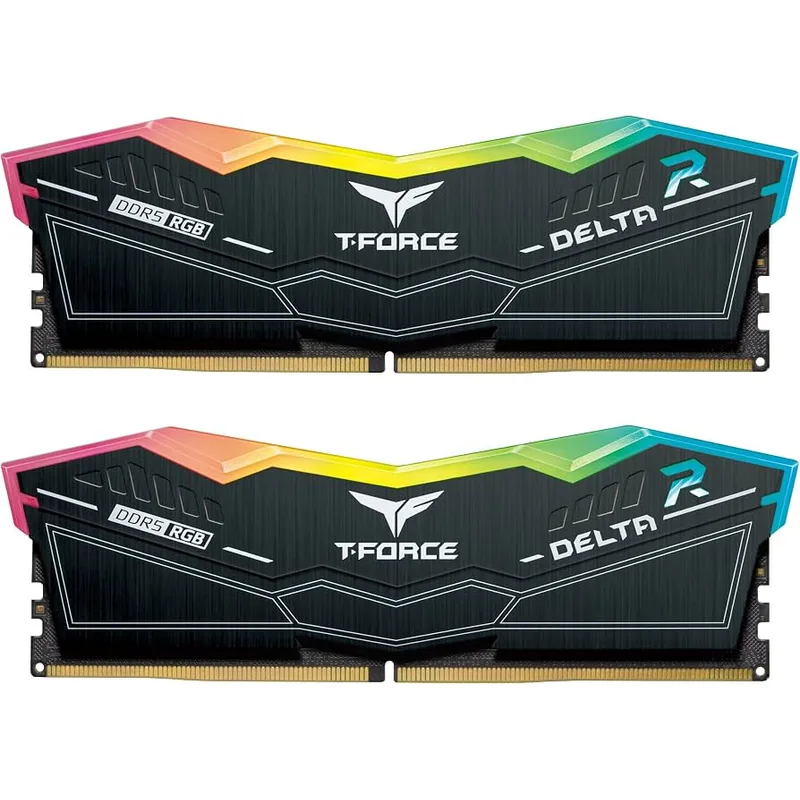
The TeamGroup T-Force Delta RGB carries both XMP 3.0 and EXPO profiles at CL30 — same platform flexibility as the Trident Z5 Neo but with a longer RGB diffuser that produces noticeably more even lighting across the stick length.
At 44mm tall, clearance to adjacent cooler fans is tighter than the Kingston FURY Beast. On AM5 builds with a 240mm or 360mm AIO where the CPU cooler does not overhang the DIMM area, height is a non-issue. Verify if you are using a tower air cooler: the Noctua NH-D15 G2’s 150mm height keeps its fans above the DIMM area on most mid-tower cases, but close-clearance mATX cases may compress the A1/A2 slot space.
The full-length diffuser is the primary reason to choose this kit over the G.Skill at $20 less — if the visual difference matters to your build aesthetic, the T-Force Delta delivers better value per visible LED.
5. G.Skill Ripjaws S5 DDR5-6000 32GB CL30 Intel XMP
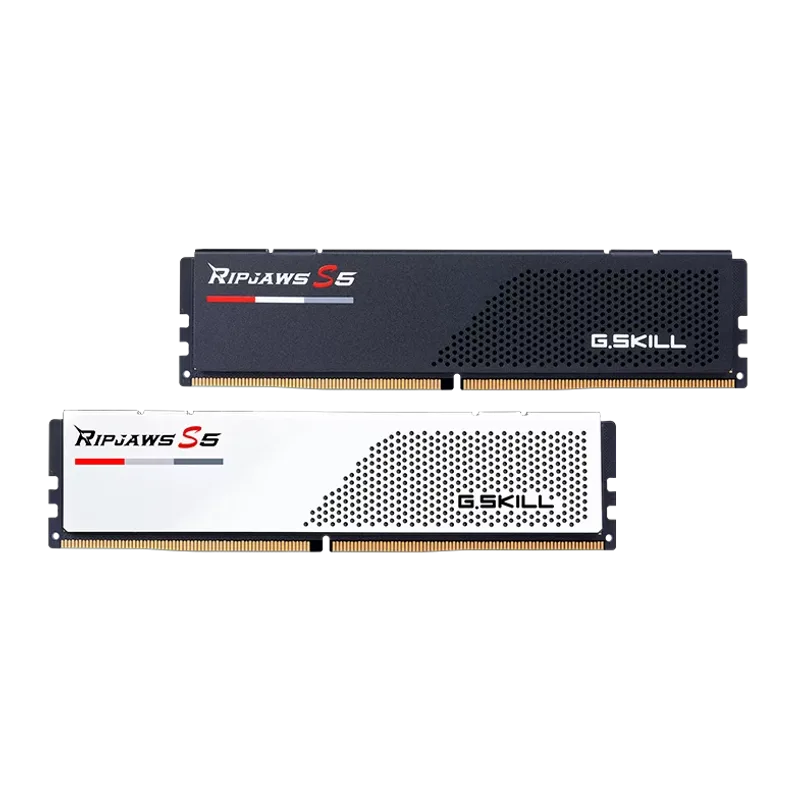
G.Skill Ripjaws S5 DDR5-6000 32GB CL30 Intel XMP
The G.Skill Ripjaws S5 DDR5-6000 CL30 is the lowest-profile DDR5-6000 CL30 kit currently in production at 27mm — 10mm shorter than the T-Force Delta and 7mm shorter than the Corsair Vengeance. That clearance matters for ITX builds and any configuration with a tight-fitting AIO radiator or thick dual-tower air cooler.
Intel XMP 3.0 only — no EXPO profile. On Z890 and Z790 boards, XMP activation to DDR5-6000 CL30 takes a single BIOS setting. The matte black finish blends cleanly with any build color scheme.
For AMD Ryzen builders, this kit does not include EXPO and requires either manual sub-timing entry or using a compatible A-XMP/DOCP profile at potentially lower speeds. AMD builders should choose the FURY Beast or Trident Z5 Neo instead.
Troubleshooting Common RAM Issues
System does not POST after installing RAM:
- Re-seat modules — press firmly until both retention clips click. This is the cause of ~70% of RAM-related POST failures.
- Confirm you are in A2/B2 slots, not A1/B1 or adjacent slots.
- Try one stick alone in slot A2. If it boots, add the second stick. If the single stick also fails, try the other slot.
- Update motherboard BIOS to the latest version — especially critical for new-generation RAM on 2023–2024 boards.
RAM shows correct speed in BIOS but Windows reads 4800 MT/s: XMP/EXPO was not enabled, or the profile reset after a CMOS clear. Re-enter BIOS and re-enable the profile.
System boots but random crashes or blue screens under load (WHEA_UNCORRECTABLE_ERROR): This indicates memory instability, usually caused by:
- Voltage too low for the chosen speed — try increasing VDDQ by 0.02–0.05V.
- Overly aggressive sub-timings — the rated XMP/EXPO profile should be stable; if crashes occur on the rated profile, the kit may be failing or BIOS memory training parameters are misconfigured.
- Confirm with the vendor’s memory compatibility list (QVL) that your specific kit and board revision are validated.
Only 16GB recognized instead of 32GB: One stick is not seated. Power off completely, re-seat both sticks, and confirm each retention clip clicks. Some boards also display this symptom when a stick is in the wrong slot — double-check A2/B2.
Build Tips for Memory Installation
- Install RAM before the motherboard goes in the case — with the board on a flat surface (anti-static bag is fine), you have two-handed access to apply even downward pressure without risk of damaging the case or other components.
- Label your slots — if you plan to add a second kit later for 64GB total, note which slots are occupied so you expand correctly.
- Run MemTest86 overnight on a new build — this free utility runs memory stress tests from a USB drive at boot, independent of Windows. Four full passes with zero errors confirms the installation is stable.
- DDR5 runs slightly warmer than DDR4 — ensure case airflow moves across the DIMM slots. Memory temperatures above 55°C under sustained load can cause throttling on some Hynix A-die modules.
Performance Expectations
| RAM Configuration | Platform | Cyberpunk 2077 1440p avg FPS | Cyberpunk 2077 1% low |
|---|---|---|---|
| DDR5-6000 CL30 (Dual-Channel) | AM5 Ryzen 9 9800X3D | ~148 FPS | ~118 FPS |
| DDR5-6000 CL36 (Dual-Channel) | AM5 Ryzen 9 9800X3D | ~147 FPS | ~114 FPS |
| DDR5-4800 JEDEC (Dual-Channel) | AM5 Ryzen 9 9800X3D | ~135 FPS | ~101 FPS |
| DDR5-6000 CL30 (Dual-Channel) | Intel Core Ultra 9 285K | ~142 FPS | ~112 FPS |
| DDR5-4800 JEDEC (Dual-Channel) | Intel Core Ultra 9 285K | ~136 FPS | ~106 FPS |
| DDR5-6000 CL30 (Single-Channel) | AM5 Ryzen 9 9800X3D | ~112 FPS | ~82 FPS |
Source: Based on Hardware Unboxed and GamersNexus memory scaling data for AM5 and LGA1851 platforms, 2026. Single-channel figures illustrate the penalty for incorrect slot selection.
The single-channel row illustrates why slot selection matters. Running DDR5-6000 in the wrong slot configuration costs 25% average FPS and 30% in 1% lows compared to properly configured dual-channel — larger than the difference between any two kits on this list.
Upgrade Path
From 32GB to 64GB: Add a second identical kit — same model, same speed, same CL. Mixing kits from different manufacturers at the same rated speed works in most cases, but the system will train to the looser kit’s timings. To guarantee DDR5-6000 CL30, use identical sticks.
From DDR5-6000 to faster: DDR5-6400 and DDR5-7200 deliver measurable gains only in content creation (Blender, video encoding). At 1440p gaming, Hardware Unboxed measured 0–2 FPS difference between DDR5-6000 and DDR5-7200 on the same CPU. The $100+ premium for DDR5-7200 is not justified for gaming-only builds.
Platform migration: If you move from AM5 to Intel (or vice versa), keep the RAM and buy a platform-agnostic dual-profile kit (Trident Z5 Neo or T-Force Delta). Single-profile kits may still work on the other platform via manual configuration, but guaranteed rated-speed operation requires the matching profile.
FAQ
Do I need to install RAM before or after the CPU cooler?
Install RAM before mounting the CPU cooler. With the cooler in place, especially dual-tower air coolers like the Noctua NH-D15 G2, the fan can obstruct access to the A1 slot and make it difficult to apply even downward pressure. Seat all DIMMs with the board flat on a surface first.
Can I use only one DDR5 stick in a build?
Yes, but the performance penalty is significant — 25–30% lower bandwidth versus dual-channel. Use one stick only as a temporary measure. Budget for a second matching stick at build time rather than upgrading later when prices may have changed.
What is the difference between XMP 3.0 and AMD EXPO?
Both are one-click overclock profiles stored on the DIMM itself. Intel’s XMP (Extreme Memory Profile) version 3.0 allows multiple sub-profiles per stick and is validated on Z-series and B-series Intel boards. AMD EXPO (Extended Profiles for Overclocking) serves the same function for AM5 boards and uses tuning specific to AMD’s Infinity Fabric memory controller. A kit carrying both profiles works correctly on either platform — select the profile matching your CPU vendor in BIOS.
My board shipped in 2024. Will it support 2026 DDR5 kits?
Most 2024 boards (B650, X670, Z790, Z890) support current DDR5-6000 kits after a BIOS update. The BIOS update is important — memory QVL lists (qualified vendor lists) receive additions with each firmware revision, and a 2024 launch BIOS may not recognize DRAM ICs binned in 2025–2026. Update BIOS before assuming a kit is incompatible.
Is 32GB enough for gaming in 2026?
For gaming-only builds, yes — no current title requires more than 24GB of system RAM, and 32GB provides headroom for Chrome, Discord, streaming software, and background processes. Content creators running DaVinci Resolve or Blender with complex scenes benefit from 64GB. If your workflow stays gaming-only, 32GB remains the correct 2026 minimum.
The Bottom Line
Installing DDR5 RAM correctly comes down to three things: right slots (A2/B2 for dual-channel), full seating (both clips click), and XMP/EXPO enabled in BIOS. Skip any one of these and you leave 25–30% of your RAM’s capability unused.
For kit selection: AMD Ryzen 9000 builders should start with the Kingston FURY Beast DDR5-6000 CL30 at $399 — same CL30 timings as the more expensive G.Skill for $90 less, with EXPO validation. Intel Core Ultra 200S builders running low-clearance configurations should look at the G.Skill Ripjaws S5 CL30. For platform flexibility and RGB, the G.Skill Trident Z5 Neo RGB remains the benchmark dual-profile kit at the DDR5-6000 CL30 speed tier.
Need a chair to go with the new build? PostureRanked covers the best ergonomic gaming chairs — long build sessions warrant good lumbar support.