A new AM5 build that sits on a black screen for a minute or more is often not dead. DDR5 platforms run memory training on first boot and after memory or BIOS changes, and owner threads on AM5 boards report that cold boots can take 30 seconds to a minute and a half. Waiting a few minutes with the PC untouched is the first diagnostic step, and the full process below covers what to do when waiting does not work.
This guide is a decision tree: it starts with the most common causes and ends with the rarest. Each step is cheap to check and tells you something. The five tools below are the small purchases that save the most time when a PC refuses to POST.
| Spec | Panasonic CR2032 Lithium Coin Cell (10-pack) 8.4/10 | iFixit Anti-Static Wrist Strap 8/10 | STREBITO 79-in-1 Precision Screwdriver Set 8.2/10 | Yomile 2-in-1 Cordless Air Duster and Vacuum 7.8/10 | ARCTIC MX-6 Thermal Paste (4g) 8.6/10 |
|---|---|---|---|---|---|
| chemistry | Lithium manganese dioxide | — | — | — | — |
| voltage | 3.0V | — | — | — | — |
| size | CR2032 (20mm x 3.2mm) | — | — | — | — |
| pack | 10 cells | — | — | — | — |
| Rating | 8.4/10 | 8/10 | 8.2/10 | 7.8/10 | 8.6/10 |
Prices change daily — tap Check Price for the current Amazon price.
Prices change daily — tap Check Price for the current Amazon price.
Before You Touch Anything
Write down exactly what happens when you press the power button. The symptom narrows the cause faster than any tool.
| Symptom | Most likely cause |
|---|---|
| Nothing at all, no fans, no lights | Power: switch, cable, front-panel connector |
| Fans spin for a second, then stop, repeating | Short, bad RAM seating, or CPU power missing |
| Fans spin, no display, no beeps | RAM, GPU seating, or display cable on the wrong port |
| Boots, then shuts down after a minute | Overheating or PSU protection tripping |
| Stuck at BIOS logo or loops into BIOS | Boot drive, BIOS settings, or CMOS error |
Always unplug the PSU or flip its rear switch off before reseating anything. Standby power keeps the motherboard live even when the PC is off.
Step 1: Power and the Obvious Stuff
Most no-boot reports on new builds come down to missed connections, so check these first.
- PSU switch and wall cable. Confirm the rear switch is on and the cable is firm at both ends.
- 24-pin and CPU power. Both must be fully clicked in. The CPU power connector is the 8-pin (or 4+4) labelled CPU or EPS, not the PCIe cable. Plugging a PCIe cable into the CPU header fails to power the CPU.
- GPU power. If the card uses the 12V-2x6 connector, it needs to be seated fully with no gap, and cables should not bend sharply at the plug.
- Front-panel connector. If the case button does nothing, short the two power-switch pins on the motherboard header with a screwdriver. If it boots, the case button wiring is the fault.
If the PC still shows no life, the PSU is a suspect. Try a different wall outlet, then a different known-good PSU if you have one. A paperclip jumper on a PSU is not a safe test and is not recommended on modern units.
Step 2: Strip It Down to the Minimum
A minimal configuration removes variables. Leave only the CPU, one RAM stick in the slot your manual recommends, the cooler, and the PSU connectors. Pull the GPU if the CPU has integrated graphics and connect the monitor to the motherboard output. Disconnect extra drives, fans and USB devices.
If it boots in the stripped-down state, add parts back one at a time. The last item added is the culprit.
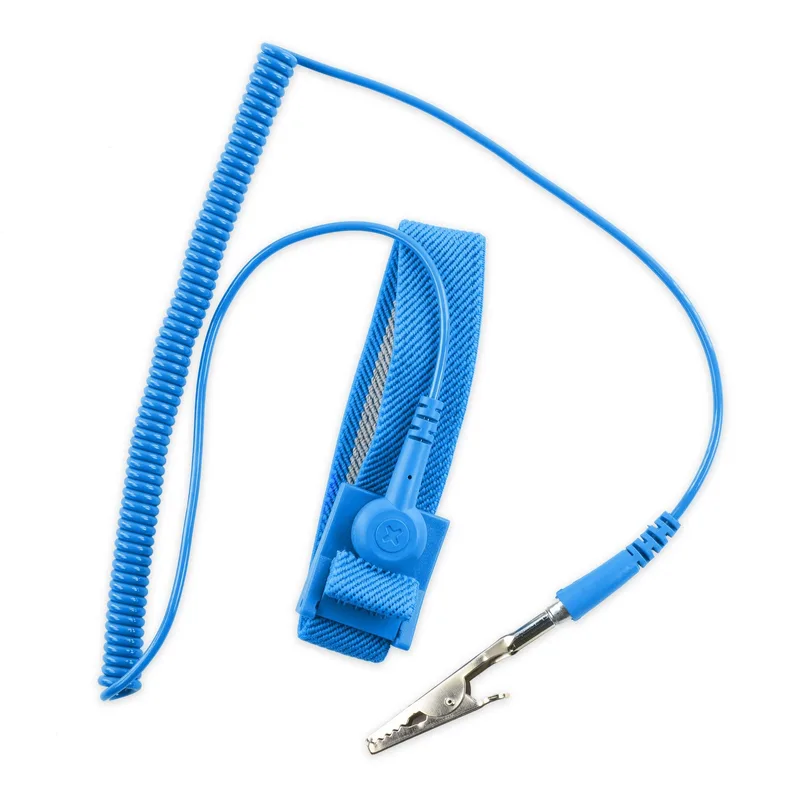
Wear a grounded strap while you do this, or touch the bare metal of the case first. The iFixit strap is the simplest way to stay grounded on a long reseat session.
Step 3: RAM, the Most Common Culprit
On DDR5 boards, memory is the leading suspect for a no-POST. Do these in order:
- Reseat each stick. Push until both clips click. A stick that is one side seated will not train.
- Use the right slots. With two sticks, use slots A2 and B2 (usually the second and fourth from the CPU) unless your manual says otherwise.
- Try one stick at a time in the primary slot to find a bad module.
- Wait out memory training. AM5 boards can take several minutes after the first install of a kit. A debug LED stuck on a RAM code does not always mean failure.
- Disable the XMP or EXPO profile. An unstable memory profile is a common reason a kit fails to boot at its rated speed.
Once you are booting, enabling Memory Context Restore in the AMD CBS or DRAM settings (name varies by vendor) is reported by owners to cut cold-boot time from around 50 seconds to under 15 seconds on AM5 boards. Enable Power Down alongside it, as owners recommend, to avoid instability. Treat this as a tweak after the PC is stable, not a fix for a no-POST.
Step 4: GPU and Display
- Reseat the GPU and make sure the PCIe retention latch clicks.
- Check the monitor input. The cable must be in the graphics card, not the motherboard’s video output, when a discrete GPU is installed.
- Swap cables. A bad DisplayPort cable or a monitor stuck on another input is a surprisingly common cause of no display.
- Try another output on the same GPU.
If the GPU has a Dual BIOS switch, flip it and retry. If a second system or the CPU’s integrated graphics works, the GPU or its power cables are the issue.
Step 5: Clear CMOS and Check the Battery
A corrupted BIOS setting, a failed overclock or an aggressive memory profile can leave a PC unbootable even though all hardware is fine. Clearing CMOS resets the BIOS to defaults.
- Unplug the PSU or turn off its switch.
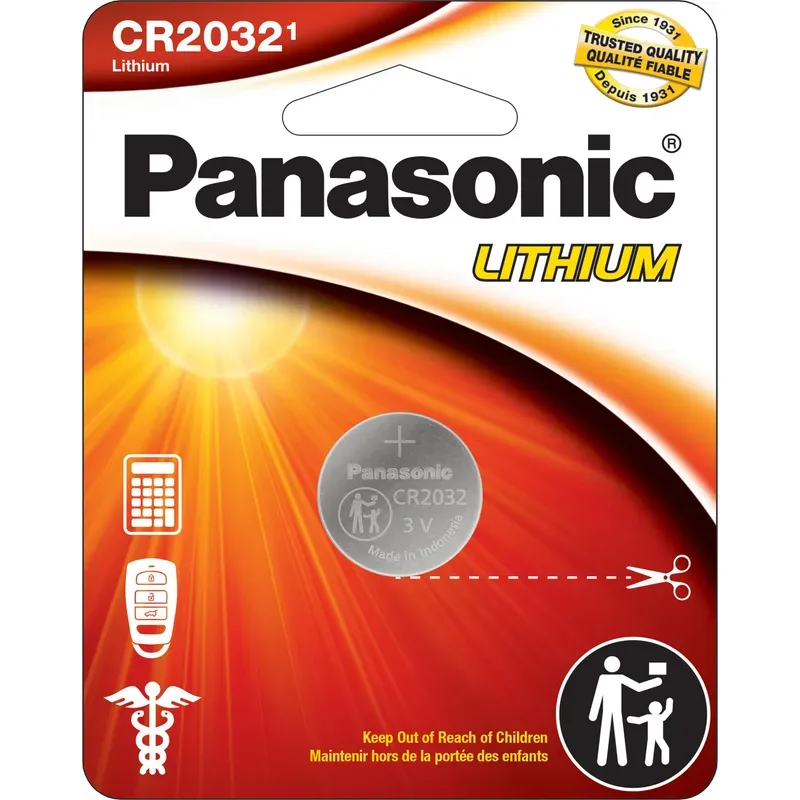
- Press the Clear CMOS button on the rear I/O panel if your board has one. Otherwise, move the CLR_CMOS jumper for 10 seconds, or remove the coin cell for 5 minutes.
- Reconnect power and boot.
A Panasonic CR2032 is worth keeping on hand. A dead battery shows up as BIOS settings resetting after power loss, the clock reverting to a default date, or “CMOS checksum error” messages at startup. It is a two-minute fix.
Step 6: Heat and Shutdowns
If the PC boots and shuts down after a minute or two, check whether the CPU cooler is making contact. Look for a cooler that was not fully tightened, a missing plastic film on the cooler’s base, or an AIO pump header with no power. Read the CPU temperature in the BIOS. A temperature that jumps above 90C within seconds at idle points to mounting.
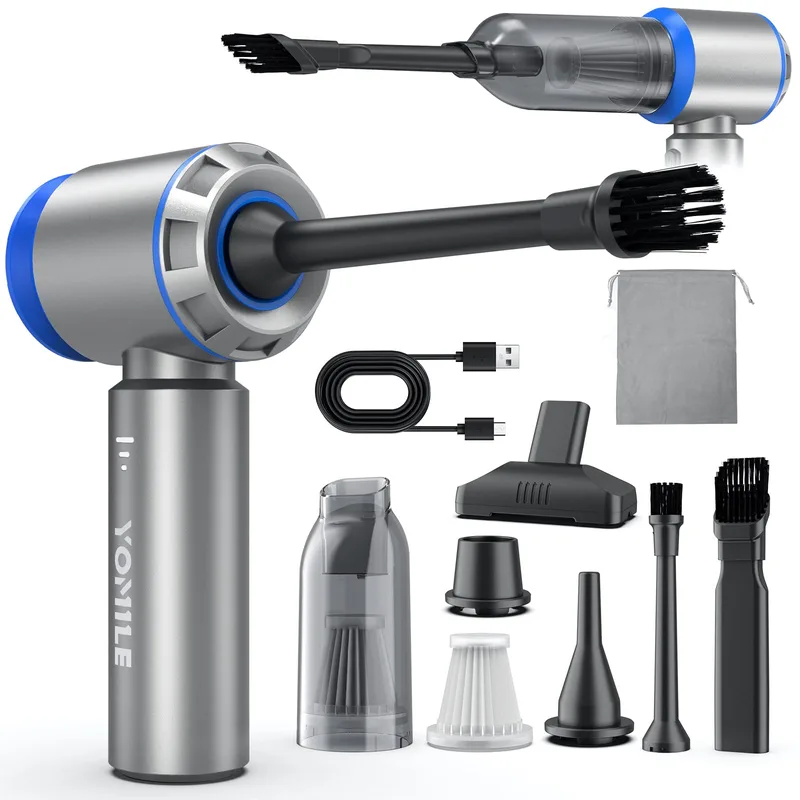
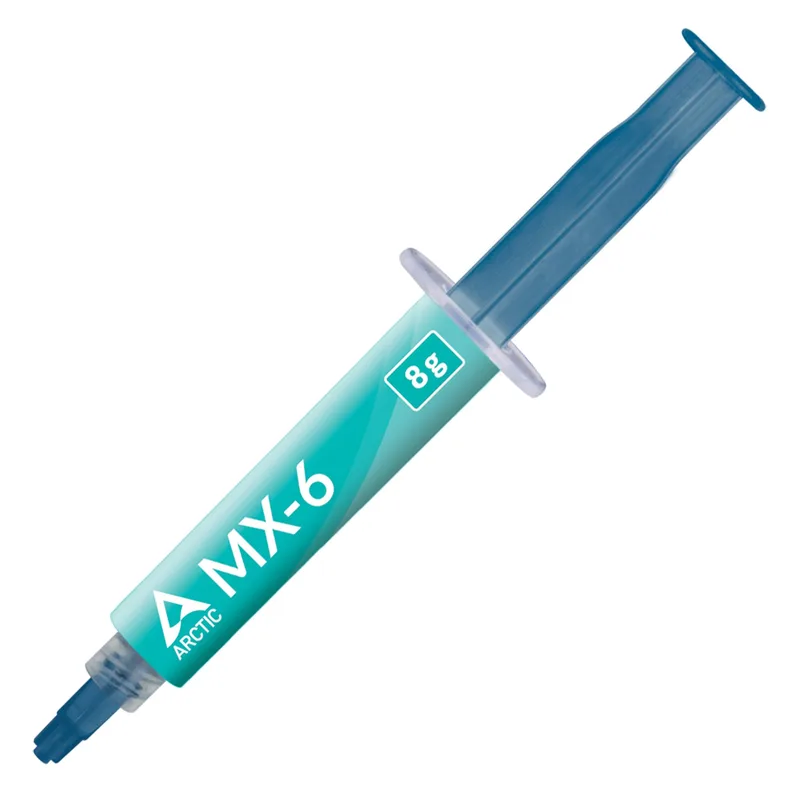
Remount the cooler with fresh paste. A non-conductive paste like ARCTIC MX-6 avoids a short if you smear it onto the socket area. Our thermal paste roundup covers more options. Also clear any dust built up on fans and heatsink fins, which is a common cause of thermal shutdowns on a PC that has run for a year or more. Hold fan blades still while you use a blower or cordless duster.
Step 7: Read the Debug LEDs and Beep Codes
Most mid-range and higher boards have four small debug LEDs labelled CPU, DRAM, VGA and BOOT, or a two-digit Q-code display. The LED that stays lit tells you which stage failed.
| LED stuck on | What it means | What to try |
|---|---|---|
| CPU | CPU not detected or initialized | Reseat the CPU, check bent socket pins, update BIOS |
| DRAM | Memory not training or not detected | Steps in the RAM section above |
| VGA | GPU not detected | Reseat the card and its power |
| BOOT | OS drive not found | Check the boot drive and boot order |
If a new CPU is on an older BIOS, the board may need a BIOS flash before it recognizes the chip. Many boards offer a flashback button that updates the BIOS from a USB stick without a CPU installed. Check your motherboard manual for the exact procedure and USB port.
Tools Worth Having
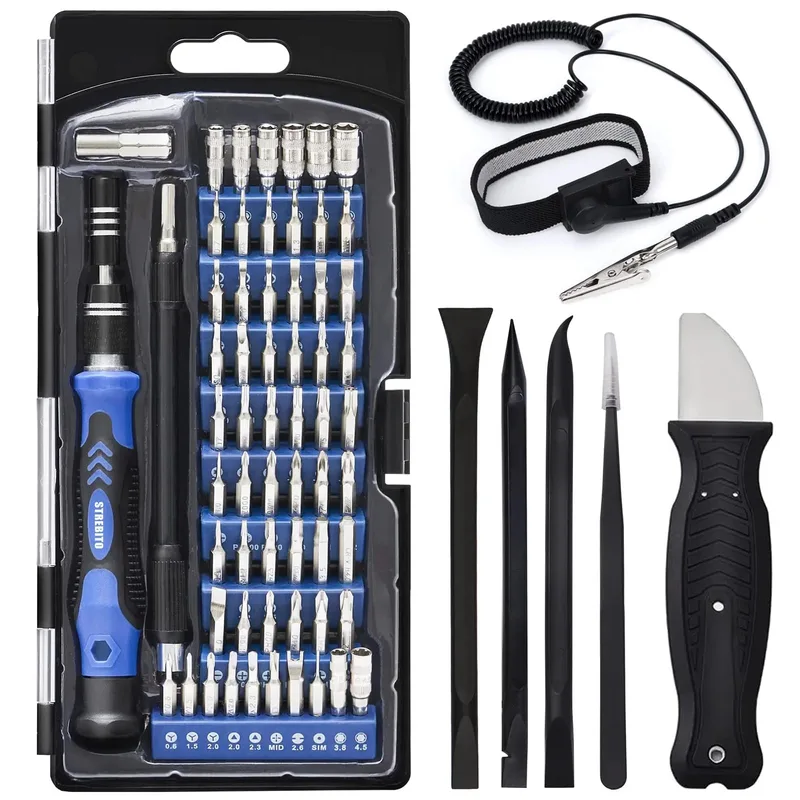
A good precision screwdriver set matters more than it seems, since M.2 screws and GPU brackets are small enough to strip with a poor-fitting bit. Keep the set, the strap, a spare coin cell and a tube of paste in a single box, and the next problem takes minutes, not hours.
Panasonic CR2032 Lithium Coin Cell
iFixit Anti-Static Wrist Strap
STREBITO 79-in-1 Precision Screwdriver Set
Yomile 2-in-1 Cordless Air Duster and Vacuum
ARCTIC MX-6 Thermal Paste
When It Is the Part, Not the Build
If the minimum configuration still will not boot with a known-good RAM stick, known-good PSU and a reseated CPU, one of three parts is bad: the motherboard, the CPU, or the PSU. The sensible order for swapping or sending in is:
- PSU first, because it is the cheapest to test with a borrowed unit.
- Motherboard second, particularly if you see bent socket pins or a CPU debug LED that survives a reseat.
- CPU last, as CPU failures are rare outside of bent pins or overheating.
Note the results of your minimum-configuration test in case you need to file a return or warranty claim. If you are still planning the build, our first PC build guide walks through assembly with fewer chances to get stuck, and the budget breakdown guide helps with choosing parts.
FAQ
How long should I wait for a new AM5 build to POST?
Give it up to five minutes on the first boot with a fresh DDR5 kit. Owners report memory training taking from 30 seconds to over a minute on AM5 boards, and it can run longer after a BIOS update or a memory change. If the debug LED is still on DRAM after five minutes with no change, power off and reseat the memory.
Why do my fans spin but there’s no display?
The usual causes are RAM that is not seated or not training, a GPU that is not seated or powered, or the monitor cable plugged into the motherboard instead of the graphics card. Work through the RAM and GPU sections in order, and use the debug LEDs to see which stage stops.
Does clearing CMOS delete my data?
No. It resets BIOS settings to defaults, such as the memory profile, boot order and fan curves. Your files on the SSD are not touched. You will need to re-enable XMP or EXPO and set the boot drive again.
Can a dead CMOS battery stop a PC from booting?
It can, though it is less common than a RAM or power fault. A dead battery usually causes lost BIOS settings and a reset clock, and some boards halt on a checksum error until you press a key. Replace the CR2032 and enter the BIOS to reset your settings.
Is the power supply or the motherboard at fault?
If there is no sign of life at all, no fan twitch and no LED, suspect the PSU, the wall cable or the front-panel connector first. If fans spin and LEDs light but nothing boots, the fault is more often RAM, GPU or CPU seating than the board itself.
The Bottom Line
Work in this order: confirm power connections, strip to a minimal configuration, reseat RAM, check the display path, clear CMOS, and then read the debug LEDs. On a new DDR5 build, wait out memory training before you assume failure. For the toolbox, keep a Panasonic CR2032, a precision screwdriver set and a tube of ARCTIC MX-6 on hand, since those cover the most common fixes.