High CPU and GPU temperatures are the leading cause of unexpected shutdowns, throttled frame rates, and premature hardware failure. Modern AMD and Intel CPUs are engineered to sustain boost clocks into the mid-to-high 80s under heavy load — but if your processor is regularly hitting 90°C+ during gaming, something is wrong. This guide covers exactly how to read your temperatures using free tools, what numbers are actually safe across different platforms in 2026, and which cooling upgrades make the most measurable difference.
| Spec | Arctic MX-6 4g Thermal Compound 8.5/10 | Thermal Grizzly Kryonaut 1g 9/10 | Arctic Freezer 36 A-RGB 8/10 | Noctua NH-D15 G2 9.5/10 | Noctua NF-A12x25 G2 PWM chromax.Black 9/10 |
|---|---|---|---|---|---|
| Thermal Conductivity | 7.5 W/mK | 12.5 W/mK | — | — | — |
| Weight | 4g (~2-3 applications) | 1g (single application) | — | — | — |
| Operating Temp | -50°C to 160°C | -250°C to 350°C | — | — | — |
| Non-Conductive | Yes | Yes | — | — | — |
| Shelf Life | 8 years | — | — | — | — |
| Rating | 8.5/10 | 9/10 | 8/10 | 9.5/10 | 9/10 |
Prices change daily — tap Check Price for the current Amazon price.
Prices change daily — tap Check Price for the current Amazon price.
Temperature Reference: Safe Zones at a Glance
| Component | Idle | Gaming Load | Warning Zone | Throttle Point |
|---|---|---|---|---|
| AMD Ryzen 7000/9000 (CPU Tdie) | 35–50°C | 75–88°C | >90°C | 95°C |
| Intel Core Ultra 200 (CPU) | 30–45°C | 75–87°C | >90°C | 100°C |
| NVIDIA RTX 5000 series (GPU die) | 30–45°C | 65–80°C | >83°C | 83°C |
| AMD RX 9000 series (GPU hotspot) | 35–55°C | 80–100°C | >105°C | 110°C |
One important distinction: AMD GPU cards report a “Junction Temperature” or hotspot value that runs 20–30°C hotter than what NVIDIA’s GPU die reading shows. An RX 9070 XT sitting at 95°C hotspot is running normally. NVIDIA’s die temperature throttle point is 83°C — keep that gap in mind when comparing readings across brands.
Step 1: Install the Right Monitoring Software
HWiNFO64 — The Comprehensive Choice
HWiNFO64 is the most detailed free sensor reader available. It logs every temperature sensor, voltage rail, current draw, power reading, and fan RPM on your system simultaneously. Download it from hwinfo.com, launch in “Sensors Only” mode, and look for:
- CPU Package — averaged temperature across all cores
- CPU (Tdie) — AMD-specific thermal diode reading; this is the accurate number for Ryzen
- GPU Die — NVIDIA’s primary temperature sensor
- GPU Hotspot / Junction — AMD’s more conservative reporting metric for GPU thermals
HWiNFO64 also logs all sensor values to a CSV file on a per-second basis, which lets you review what your system hit during a specific gaming session after the fact — useful for diagnosing intermittent thermal throttling.
MSI Afterburner — Best for In-Game Monitoring
MSI Afterburner’s on-screen display (OSD), delivered through RivaTuner Statistics Server, overlays live CPU and GPU temperatures in the corner of your game at a configurable update interval. Setup takes under two minutes:
- Open Afterburner → Settings → Monitoring tab
- Check CPU Temperature, GPU Temperature, and GPU Memory Temperature
- Enable the OSD toggle and set your preferred corner
Most users run both tools simultaneously — HWiNFO64 in the background for detailed logging and Afterburner’s OSD for live in-game readings without alt-tabbing.
HWMonitor — Quick and Simple
HWMonitor from CPUID reads all sensor data at a glance without any configuration required. A recent April 2026 update added support for Intel Arrow Lake Refresh processors. For a fast “is my PC running hot right now?” check without digging into sensor nomenclature, HWMonitor delivers an answer in under 30 seconds.
Step 2: Run a Realistic Load Test
Idle temperatures tell you almost nothing useful. What matters is sustained load behavior. Run one of the following for 10–15 minutes while monitoring with HWiNFO64:
- Cinebench R24 multi-core loop — puts every CPU core at 100% simultaneously
- 3DMark Stress Test — 20-minute GPU loop, confirms thermal stability under gaming conditions
- Prime95 Small FFTs — the most extreme CPU stress workload; produces more heat than typical gaming but reveals whether your cooler has thermal headroom
If your CPU consistently exceeds 90°C or your GPU exceeds 83°C die (NVIDIA) / 105°C hotspot (AMD) during these tests, your cooling is insufficient for the load being applied.
Step 3: Diagnose Before Spending Money
Before replacing hardware, rule out these common causes:
- Dried thermal paste — paste older than 3–4 years loses conductivity measurably. On a stock Intel/AMD box cooler that shipped with pre-applied compound and was never reapplied, dried paste is the most common cause of elevated temps in builds two or more years old.
- Poor case airflow — a case with blocked front intake or no intake fans can push GPU temperatures 10–15°C higher than a well-ventilated equivalent, regardless of the GPU’s cooler quality.
- Loose cooler mount — insufficient mounting pressure creates an air gap between the cooler base and CPU IHS. A properly torqued cooler drops temps 5–15°C compared to finger-tight pressure. Re-seat the cooler and use the X-pattern tightening sequence.
- Stock cooler at its thermal limit — a Ryzen 7 9800X3D draws approximately 170W during all-core boosts. The included AMD Wraith Prism cannot sustain this indefinitely. If you’re maxing out the stock cooler with a high-TDP chip, an aftermarket upgrade is the correct fix.
Cooling Upgrade Deep Dives
Arctic MX-6 4g — Best Value Thermal Paste
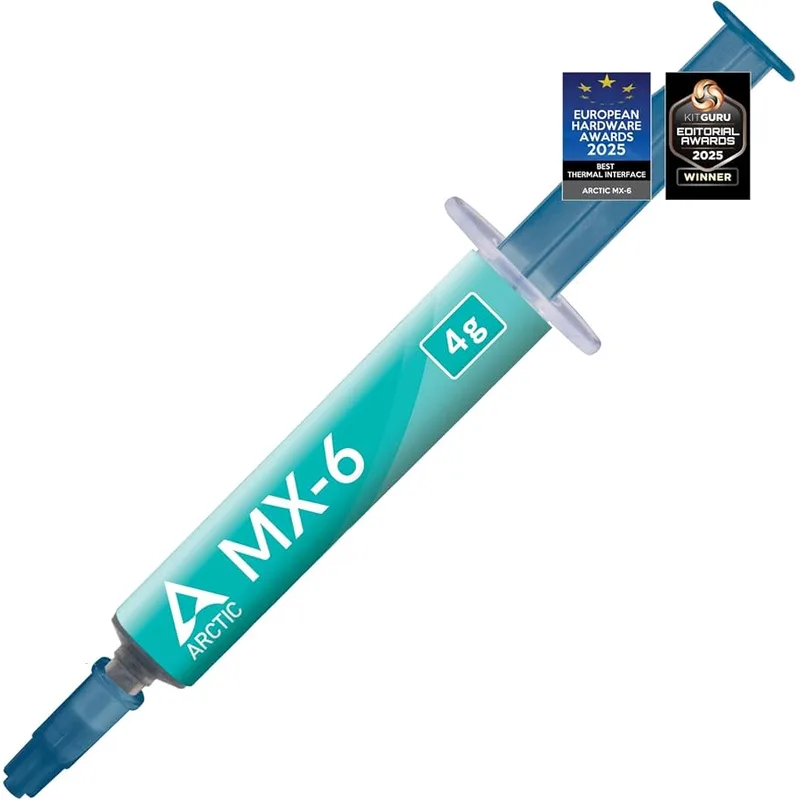
The Arctic MX-6 is the most logical first step before purchasing any new hardware. At 7.5 W/mK conductivity, owner reports on r/buildapc and the Arctic forum consistently document 3–6°C improvements on both Intel and AMD platforms after reapplication over stock or dried original paste. The 4g tube provides two to three CPU applications — enough to apply, check results, and reapply with a different technique if your first spread wasn’t ideal.
The MX-6 is non-conductive and non-capacitive. If you over-apply and compound spreads outside the IHS contact area, it won’t short anything on the motherboard or VRM. For anyone applying thermal paste for the first time, that safety margin is genuinely useful.
Thermal Grizzly Kryonaut — Premium Thermal Paste
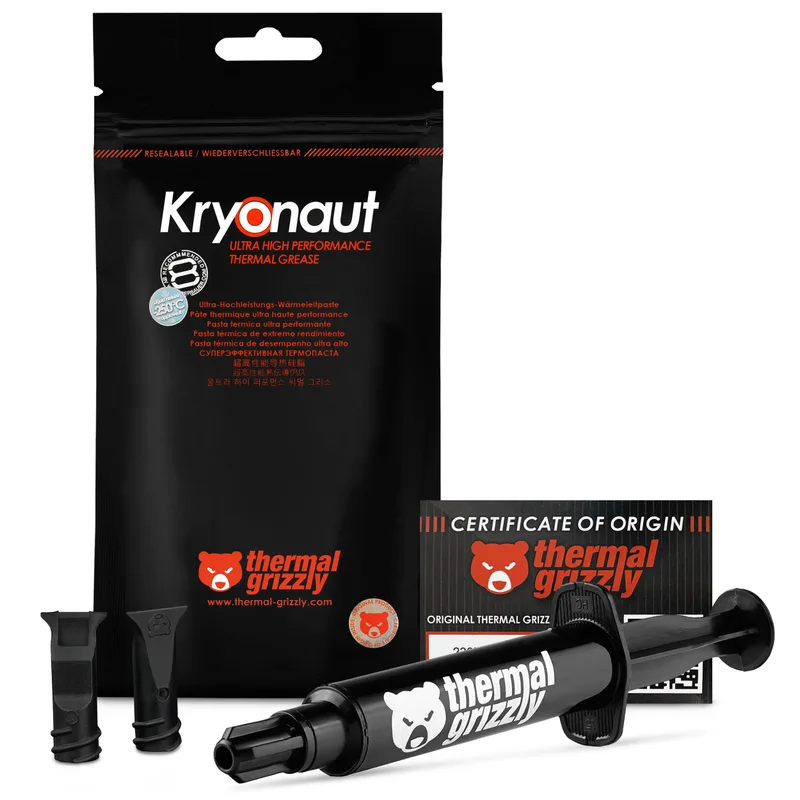
Thermal Grizzly Kryonaut has been the community standard in enthusiast circles for CPU delidding and high-end cooler installations since its launch. At 12.5 W/mK, it out-conducts Arctic MX-6 by 67% on the spec sheet — though real-world temperature differences between the two pastes run 1–3°C depending on CPU die size and cooler contact pressure.
Kryonaut’s low viscosity (130–170 poise) spreads more precisely into micro-gaps than thicker compounds, which matters most with precision-lapped cooler bases or direct-contact heatpipe designs where every fraction of a degree counts for sustained boost clock headroom.
The 1g syringe provides enough for a single careful application. Unlike the MX-6 4g, there’s no margin for a reapplication attempt — apply deliberately.
Arctic Freezer 36 A-RGB — Best Budget Air Cooler
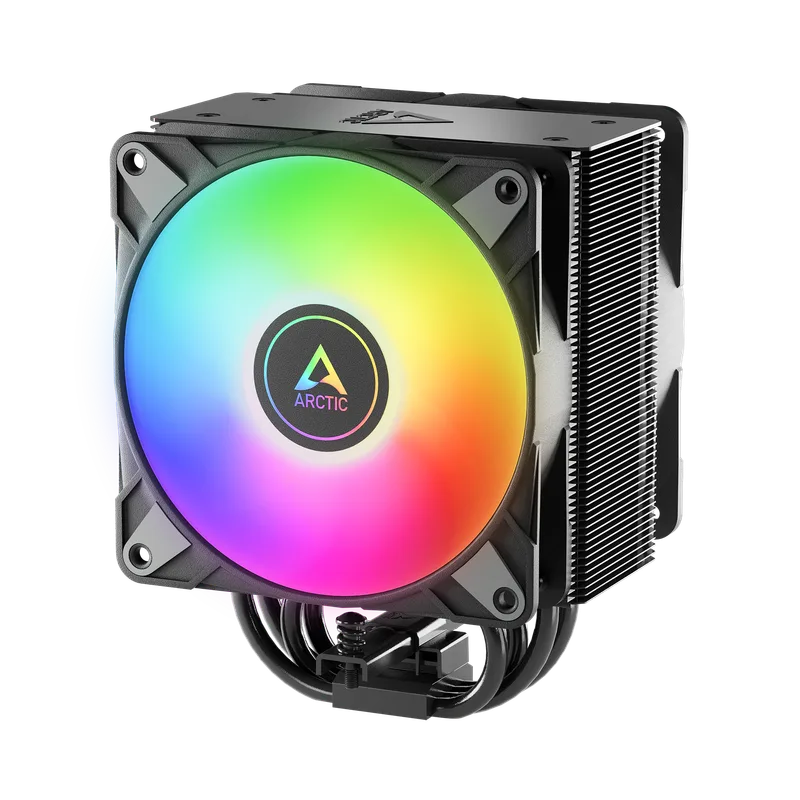
The Arctic Freezer 36 A-RGB sits at the value inflection point for air coolers. The push-pull dual 120mm P-fan configuration, fluid dynamic bearing, and four heatpipe design deliver performance that outpaces most single-fan coolers priced significantly higher. Owner reviews on PCPartPicker for the Freezer 36 series consistently highlight sub-80°C results on Ryzen 5 7600X and Core i5-13400F builds during sustained Cinebench runs.
The included MX-6 thermal paste removes that as a separate purchase — no need to budget for paste on top of the cooler price. ARGB lighting connects via a standard 3-pin motherboard header and syncs with ASUS AURA Sync, MSI Mystic Light, and Gigabyte RGB Fusion without separate software.
Socket support: AM4, AM5, LGA1200, LGA1700, LGA1851. The 158mm height clears most ATX cases; measure your case’s listed CPU cooler clearance spec before ordering for mATX or ITX builds.
Noctua NH-D15 G2 — Best Air Cooler
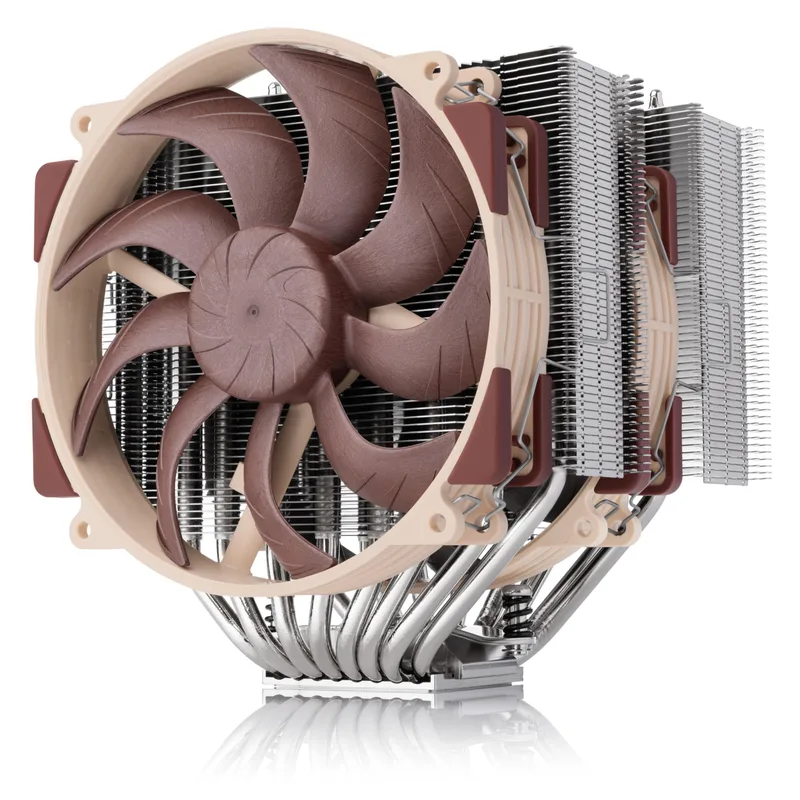
The Noctua NH-D15 G2 launched in mid-2024 as the successor to one of the most awarded CPU coolers in PC hardware history. The eight-heatpipe design and new NF-A14x25r G2 140mm fans represent a meaningful step forward over the original NH-D15 — reviews from Tom’s Hardware and GamersNexus document the NH-D15 G2 keeping the Ryzen 7 9800X3D under 80°C at sustained all-core loads where the original NH-D15 reached 85–88°C on the same chip.
The 19.2 dB(A) maximum noise rating is the spec that justifies the price for acoustic-conscious builds. At full speed, the NH-D15 G2 is quieter than most 240mm AIO coolers running their pump at medium settings. If you prioritize silence and don’t want to deal with pump noise or water loop failure points, this is the definitive choice.
At 168mm height, verify your case has at least 170mm CPU cooler clearance. Fractal Design Torrent, Lian Li Lancool 216, and most full-ATX cases clear it without issue. Compact mATX cases may not.
LGA1851 (Intel Arrow Lake): The standard NH-D15 G2 includes AM5 and LGA1851 mounting hardware out of the box. The LBC version is optimized specifically for AM5 where die contact geometry benefits from the Low Base Convexity treatment.
If you prefer water cooling, the Corsair iCUE Link Titan 360 is a strong 360mm AIO alternative at a similar price, and the Arctic Liquid Freezer III Pro 360 A-RGB is the value pick in the same TDP range. Our AIO cooler installation guide covers socket-specific mounting for both Intel and AMD.
Noctua NF-A12x25 G2 PWM chromax.Black — Best Case Fan Upgrade
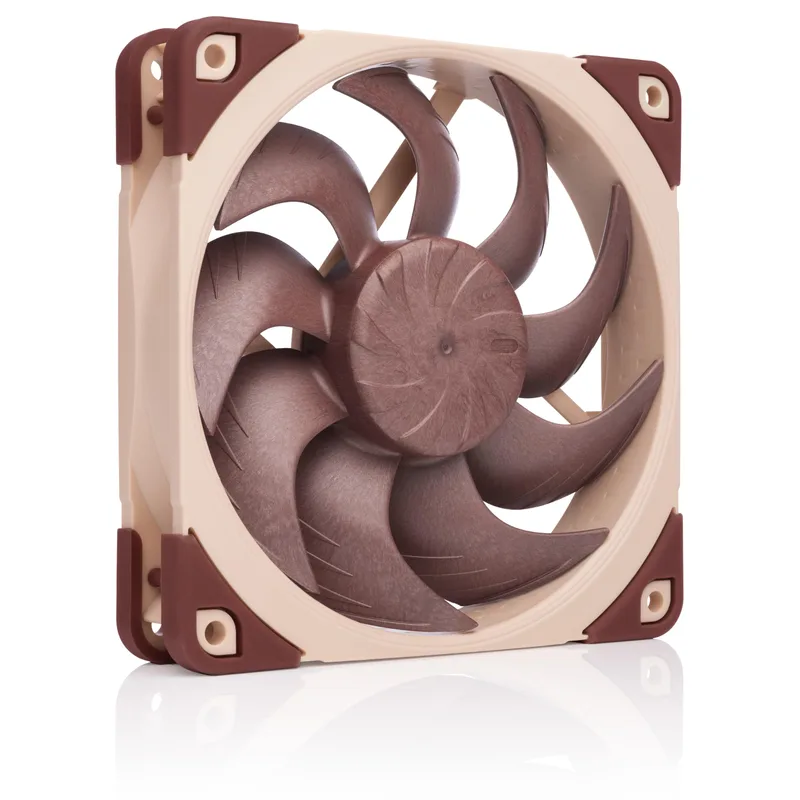
GPU temperatures in a restricted case are primarily an airflow problem, not a GPU cooler problem. Adding high-static-pressure 120mm fans to a case’s front intake panel makes a measurable difference on GPU temps. The Noctua NF-A12x25 G2 is the second generation of Noctua’s most acclaimed 120mm fan, released in 2025 with redesigned blade geometry and hub that Noctua claims delivers improved static pressure and airflow over the original NF-A12x25.
The SSO2 magnetic bearing carries an MTTF exceeding 150,000 hours. At $34.90 per fan, the NF-A12x25 G2 is a premium purchase — the Arctic P12 PWM PST at around $8 delivers the majority of the functional airflow for a fifth of the price. The G2’s advantage is most apparent in noise-normalized airflow comparisons and in high-static-pressure applications like dense radiator fins where blade efficiency matters more.
The chromax.Black version includes four swap-out anti-vibration corner pads in white, gray, black, and red to match any build aesthetic.
Upgrade Priority: What to Try First
Work through this sequence before purchasing hardware:
- Reapply thermal paste ($8–10, 20 minutes) — resolves the majority of high-temp complaints on builds two or more years old.
- Tune fan curves in BIOS (free, 5 minutes) — many motherboards ship with conservative fan curves that hold intake fans at 40% even at 75°C CPU. Set intake fans to 100% at 70°C and above.
- Add case intake fans ($20–70) — one or two NF-A12x25 G2 or Arctic P12 PWM fans at the front panel can drop GPU temps 5–10°C in restricted cases.
- Replace the CPU cooler ($45–$170) — if steps 1–3 don’t bring CPU temps under 85°C at full gaming load, the Freezer 36 A-RGB handles mid-range TDPs and the NH-D15 G2 handles 125W+ sustained loads.
Expected Temperature Improvements After Upgrade
| Upgrade | Expected CPU Temp Drop | Context |
|---|---|---|
| Reapply Arctic MX-6 (vs. dried stock paste) | 3–6°C | Most impactful on 3+ year old builds |
| Reapply Kryonaut (vs. MX-6) | 1–3°C | Only meaningful on precision-lapped coolers |
| Arctic Freezer 36 A-RGB (from box cooler) | 8–15°C | Larger gap at higher CPU TDP |
| Noctua NH-D15 G2 (from Freezer 36 A-RGB) | 5–10°C | Difference narrows at lower loads |
| Add 2× NF-A12x25 G2 front intake | 3–8°C GPU | Depends on how restricted the case is |
FAQ
What’s a safe CPU temperature while gaming in 2026?
For AMD Ryzen 7000 and 9000 series, 75–88°C Tdie during gaming is within normal operating range — AMD designs these CPUs to sustain boost frequencies right up to the 95°C throttle threshold. Intel Core Ultra 200 series CPUs target 75–87°C under gaming loads. Consistent readings above 90°C on either platform during typical gaming sessions point to insufficient cooling.
Is 80°C too hot for my GPU?
For NVIDIA RTX 5000-series cards, 78–82°C GPU die is operating near but not above the 83°C thermal throttle point. If your GPU is maintaining its boost clock at those temperatures (check GPU-Z’s GPU Clock reading during a benchmark), it’s not throttling yet. AMD RX 9000-series hotspot temps up to 100°C are within AMD’s specifications — the throttle doesn’t engage until 110°C junction temperature.
How often should I replace thermal paste?
Stock pastes included with OEM coolers — Intel’s pre-applied gray square and AMD’s Wraith pre-applied compound — tend to degrade faster than aftermarket pastes. On a build older than three years that has never had paste reapplied, Arctic MX-6 or Kryonaut is among the cheapest performance upgrades available, often dropping temps more than a $50 case fan upgrade would.
Does enabling XMP/EXPO affect CPU temperatures?
Yes, modestly. Running DDR5 at XMP 6000 MHz or above increases the memory controller voltage on AMD AM5 platforms, which shows up as a 2–5°C CPU temperature increase at idle and load compared to JEDEC speeds. The effect is real but minor — it won’t push a properly cooled build into unsafe territory. See our XMP and EXPO guide for a full BIOS walkthrough.
My GPU is hot but my CPU is fine. What causes that?
GPU temperatures in mid-tower cases are largely determined by case airflow rather than GPU cooler quality. A front panel with no intake fans — or intake fans blocked by a dust filter or solid front panel — starves the GPU of fresh air. Adding two high-static-pressure intake fans to the front panel drops GPU temps 8–12°C in many mid-towers. Confirm your GPU exhaust fans aren’t recirculating hot air back through the GPU heatsink as well.
The Bottom Line
Temperature monitoring with HWiNFO64 takes five minutes and costs nothing. If your CPU is under 85°C and your GPU under 83°C die (NVIDIA) or 105°C hotspot (AMD) during gaming, there’s nothing to fix. If temps are out of range, start with an Arctic MX-6 4g reapplication — it resolves most high-temp complaints on builds two or more years old for under $10. For builds where the stock cooler is genuinely maxed out, the Arctic Freezer 36 A-RGB at $44.99 is the strongest air cooling value for mid-range TDPs in 2026, and the Noctua NH-D15 G2 is the definitive choice for any CPU drawing 125W or more under sustained all-core loads.