With RTX 50 series and RDNA 4 cards hitting the market in 2026, “GPU bottleneck” has become one of the most searched terms among PC builders — many are upgrading to an RX 9070 or RTX 5070 only to find their older CPU limits how far the new card can push. This guide breaks down exactly what a GPU bottleneck is, how to tell if you have one, what you can fix for free, and when a hardware upgrade is actually necessary.
| Spec | AMD Ryzen 7 9800X3D 9.4/10 | AMD Ryzen 5 9600X 8.6/10 | MSI GeForce RTX 5070 12G Ventus 2X OC 8.8/10 | GIGABYTE Radeon RX 9070 Gaming OC 16G 8.4/10 |
|---|---|---|---|---|
| Cores | 8 cores / 16 threads | 6 cores / 12 threads | — | — |
| Boost Clock | 5.25 GHz | 5.4 GHz | 2557 MHz | 2700 MHz |
| Cache | 104 MB (64 MB 3D V-Cache) | 38 MB total (32 MB L3 + 6 MB L2) | — | — |
| TDP | 120W | 65W | 250W | 220W |
| Socket | AM5 | AM5 | — | — |
| Memory Support | DDR5-5600 (DDR5-6000 OC) | DDR5-5600 (DDR5-6000 OC) | — | — |
| Rating | 9.4/10 | 8.6/10 | 8.8/10 | 8.4/10 |
Prices change daily — tap Check Price for the current Amazon price.
Prices change daily — tap Check Price for the current Amazon price.
Bottleneck Scenarios at a Glance
A bottleneck means one component is consistently the limiting factor while another has unused headroom. Neither type is inherently bad — you just need to know which you have and whether it matters at your target resolution and frame rate.
| Resolution | Frame Rate Target | Typical Limiter | CPU Matters? |
|---|---|---|---|
| 1080p | 240+ Hz | CPU | Yes — strongly |
| 1080p | 144 Hz | Balanced or GPU | Moderate |
| 1440p | 144 Hz | GPU | Mild |
| 1440p | 240 Hz | GPU or balanced | Mild–moderate |
| 4K | 60–120 Hz | GPU | Minimal |
| 4K | 144 Hz | GPU | Minimal |
At 4K, the GPU is almost always the bottleneck regardless of which CPU you run. At 1080p targeting 240 Hz, the CPU often becomes the constraint even with a fast card. This table is where most “is there a bottleneck?” questions get answered before any benchmarks are needed.
How to Diagnose Your Bottleneck
Method 1: Task Manager
Press Ctrl + Shift + Esc, click the Performance tab, then open your game and alt-tab back. If your GPU sits at 95–100% while CPU usage stays below 70%, you have a GPU bottleneck. If your CPU hits 80–100% while the GPU is running at 50–70%, it’s a CPU bottleneck.
Method 2: MSI Afterburner
Install MSI Afterburner and enable the GPU and CPU usage overlays via RivaTuner Statistics Server. This shows both values in-game without alt-tabbing — more reliable since some games behave differently when not in focus.
Reading the numbers:
- GPU at 95–100%, CPU at 40–70%: GPU bottleneck — your graphics card is the limiting factor
- CPU at 80–100%, GPU at 50–70%: CPU bottleneck — the processor can’t feed the GPU fast enough
- Both at 70–85%: Balanced — the system is well-matched
- GPU at 60% or lower: Not a normal GPU bottleneck. Check for driver issues, PCIe bandwidth problems, or thermal throttling first
A 10–20% difference between the two is completely normal and rarely produces a perceptible frame time difference. Chasing perfect balance is not worth money.
Why These Upgrades
When to upgrade your CPU
If your CPU is consistently above 85% while the GPU sits below 70%, the processor is the problem. This is common when pairing a modern RTX 5070 or RX 9070 with a six-year-old quad-core, or when targeting 1080p at 240+ Hz with any older chip.
The AMD Ryzen 7 9800X3D is the correct answer when you need to completely eliminate the CPU as a variable — it’s up to 35% ahead of the Intel Core Ultra 9 285K in CPU-bound gaming scenarios and will not bottleneck any GPU available today. If your budget is tighter, the AMD Ryzen 5 9600X covers 95% of the 9800X3D’s gaming performance at 1440p for $270 less. Both use the AM5 socket, so an existing AM5 board works without a platform change.
When to upgrade your GPU
If your GPU is pinned at 95–100% while the CPU has headroom, upgrading the GPU is the most direct path to higher frame rates. This is the more common scenario at 1440p and 4K, where the render workload dominates.
The MSI GeForce RTX 5070 Ventus 2X OC matches the RTX 4080 Super at 1440p rasterization and adds DLSS 4 Multi Frame Generation — a genuinely meaningful upgrade from anything older than the RTX 4070. The GIGABYTE RX 9070 Gaming OC covers the same resolution tier at a lower price point with 16GB of VRAM, useful if you are targeting 4K texture loads or plan to keep the card for 4–5 years.
Upgrade Deep Dives
Best CPU Upgrade: AMD Ryzen 7 9800X3D
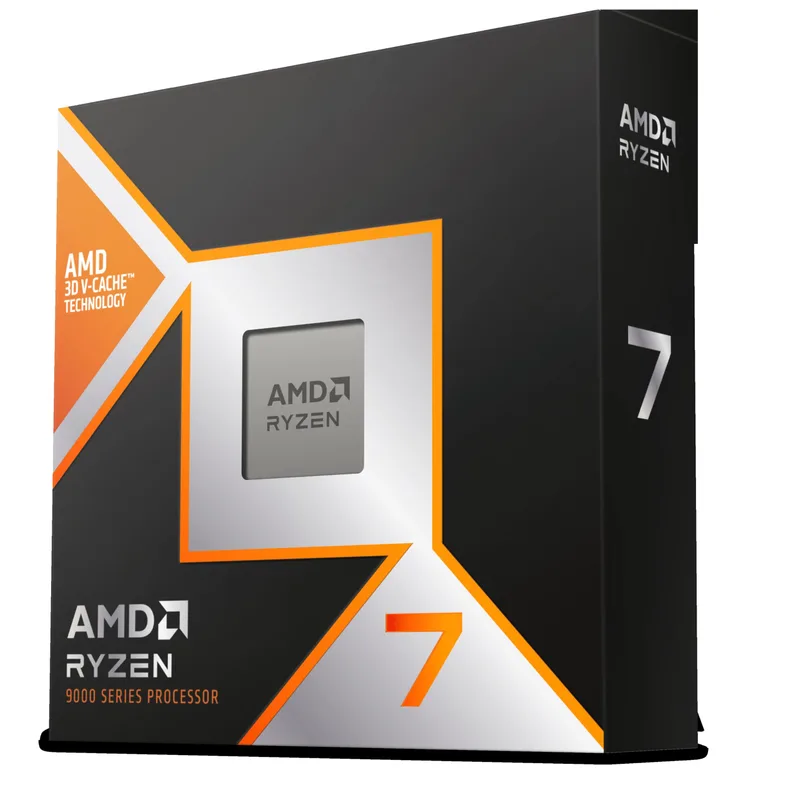
The 9800X3D is the definitive fix for CPU-bottlenecked builds. Its 64 MB of 3D V-Cache dramatically reduces cache misses in gaming workloads — the primary reason modern games hit CPU ceilings at high frame rates. Unlike the first-gen 7800X3D, which placed the cache on top of the die and limited boost clocks, the second-gen 3D V-Cache sits below the compute die on the 9800X3D. Thermal resistance drops by 46%, and the chip boosts properly to 5.25 GHz under gaming loads.
Paired with a mid-range GPU like the RTX 5070, the 9800X3D removes any chance of CPU-side frame time variance at resolutions from 1080p to 4K. If you already own an AM5 board, this is a drop-in upgrade — no platform change required.
Best Value CPU Upgrade: AMD Ryzen 5 9600X
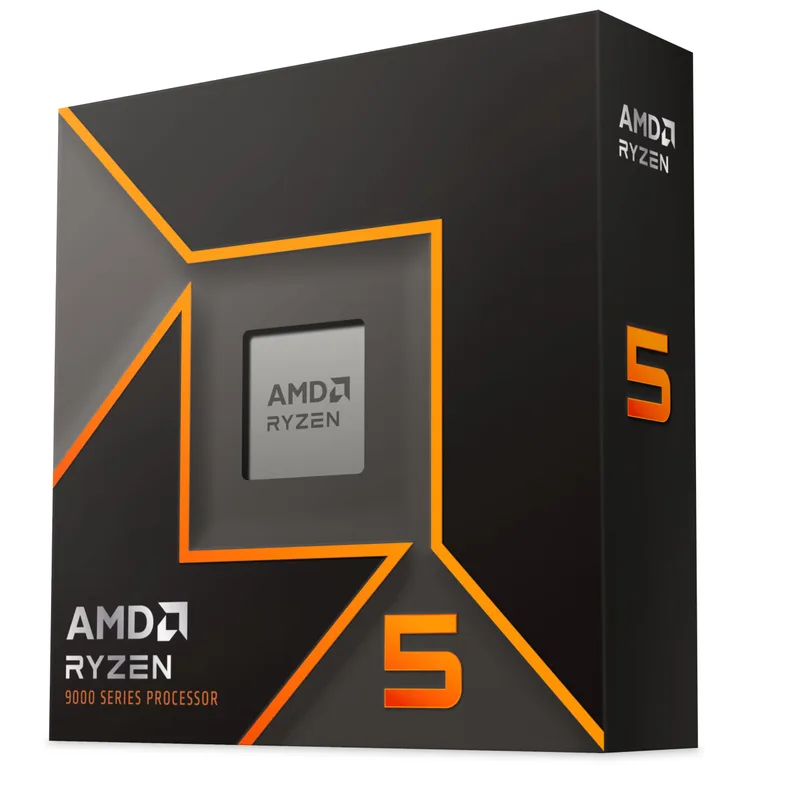
The 9600X is the right answer for builders who have a real CPU bottleneck but don’t want to spend $449 to solve it. At 1440p, owner reports and independent analysis consistently show the 9600X within 5% of the 9800X3D in most titles — the 3D V-Cache advantage only opens up significantly below 1440p or in cache-sensitive titles like CS2 and Cyberpunk 2077.
Its 65W TDP is a genuine selling point. The chip peaks at 88W under full gaming load, which means a $35–40 air cooler handles it without issue. If you are upgrading from a six-core or older eight-core on an older platform, moving to the 9600X on AM5 also unlocks DDR5 memory and PCIe 5.0 storage — the platform change itself can close some of the perceived bottleneck gap.
Best GPU Upgrade: MSI GeForce RTX 5070 12G Ventus 2X OC
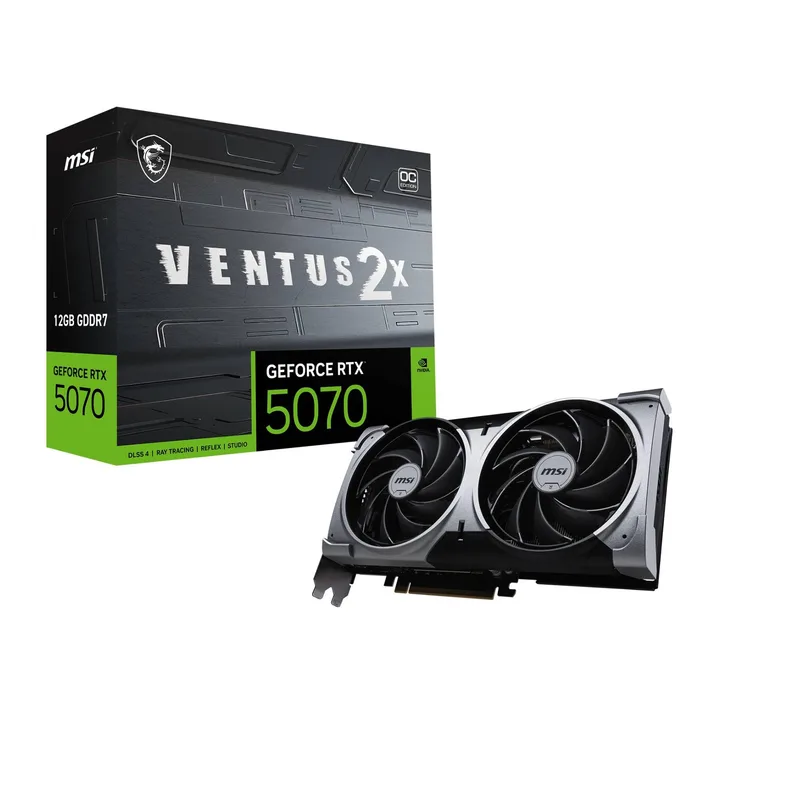
The RTX 5070 is the card to buy if your GPU is the bottleneck and you are targeting 1440p at 144 Hz or higher. Based on manufacturer specs and hardware reviewer data, it delivers performance equivalent to the RTX 4080 Super at 1440p rasterization while drawing 30W less power. DLSS 4 Multi Frame Generation is available in a growing list of supported titles and effectively multiplies frame output — in supported games, a GPU-bottlenecked system at 80 FPS can reach 140+ FPS with MFG enabled.
The Ventus 2X is the straightforward pick in the RTX 5070 lineup: dual-fan cooler, competitively priced relative to triple-fan AIB cards, and no premium for RGB lighting you might not need.
Best Value GPU Upgrade: GIGABYTE Radeon RX 9070 Gaming OC 16G
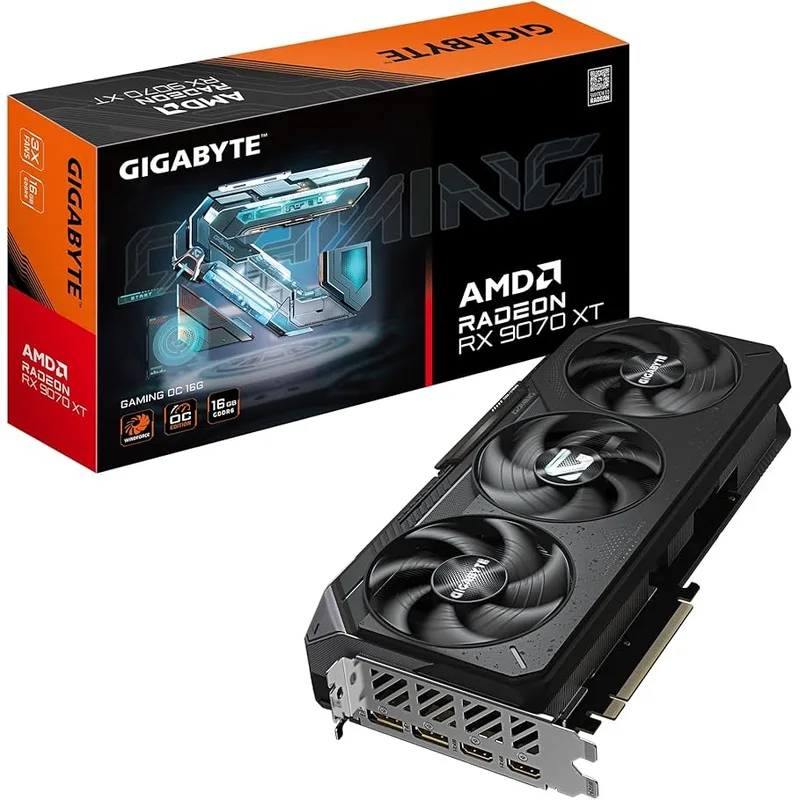
The RX 9070 non-XT sits 9–11% behind the XT variant on average but carries 16GB GDDR6 across a 256-bit bus — the same memory configuration as the XT. That makes it meaningful for 4K texture streaming and future-proofing over the RTX 5070’s 12GB GDDR7.
The GIGABYTE Gaming OC variant boosts to 2700 MHz out of the box — 100+ MHz above RDNA 4’s reference spec — and the WINDFORCE 3X triple-fan cooler keeps temperatures in check at the card’s 220W TDP. If you primarily game at 1440p and play FSR 4-supported titles, this card is a reasonable alternative to the RTX 5070. In titles that do not support FSR 4, the RTX 5070 with DLSS 4 pulls ahead clearly.
Free Fixes to Try First
Before spending money on hardware, these changes cost nothing and resolve a significant share of reported bottleneck complaints:
1. Enable XMP or EXPO in BIOS
Most DDR5 kits ship running at their base JEDEC speed (DDR5-4800 or DDR5-5200) until XMP (Intel) or EXPO (AMD) is enabled in the BIOS. A kit rated DDR5-6000 running at DDR5-4800 is leaving significant CPU bandwidth on the table. On AM5 platforms, DDR5-6000 CL30 is the Infinity Fabric sweet spot — enabling EXPO alone can improve 1% lows by 5–10% in CPU-bound scenarios.
2. Check your RAM is in dual-channel
Single-channel DDR5 cuts effective memory bandwidth roughly in half. Most motherboards color-code the correct slots — fill slots A2 and B2 (typically the second and fourth slots from the CPU) to enable dual-channel. Single-channel is a common installation mistake that looks like a CPU bottleneck.
3. Use upscaling to manage GPU bottlenecks
If your GPU is maxed out, DLSS 4 (NVIDIA) or FSR 4 (AMD) render the frame at a lower native resolution and reconstruct it at your target resolution. Quality mode adds minimal visual difference while freeing up 20–40% GPU headroom. DLSS 4 Multi Frame Generation goes further by generating additional frames between rendered frames — this does not reduce input lag the same way as raw FPS, but it smooths the output significantly.
4. Adjust resolution to shift the bottleneck
This is counterintuitive: if you have a CPU bottleneck, raising your resolution shifts more work to the GPU and reduces CPU pressure. At 1440p, a CPU that struggled at 1080p 240 Hz often shows much lower usage. Conversely, if your GPU is the bottleneck, dropping resolution lowers GPU load — not ideal for image quality but proves which component is limiting you.
5. Close background processes
Browser tabs, Discord video, streaming software, and background updates all compete for CPU time. On a 6-core chip, a process consuming one full core represents 16% of your compute budget. Use Task Manager to sort by CPU usage before assuming the processor needs replacement.
Performance Expectations After Upgrading
CPU upgrade impact (CPU-bottlenecked scenario)
| Scenario | Before | After (9600X) | After (9800X3D) |
|---|---|---|---|
| 1080p 240 Hz — Cyberpunk 2077 | CPU-limited, ~170 avg FPS | ~200 avg FPS | ~215 avg FPS |
| 1080p 240 Hz — CS2 competitive | CPU-limited, ~320 avg FPS | ~400 avg FPS | ~460 avg FPS |
| 1440p 144 Hz — most AAA titles | Minimal CPU impact | Minimal CPU impact | Minimal CPU impact |
These figures represent approximate performance profiles based on Zen 5 hardware reviewer data, not direct measurements on this hardware.
GPU upgrade impact (GPU-bottlenecked scenario)
| Scenario | RTX 4070 (old GPU) | RTX 5070 | RX 9070 |
|---|---|---|---|
| 1440p Ultra — Cyberpunk 2077 | ~65 FPS avg | ~95 FPS avg | ~85 FPS avg |
| 1440p Ultra — The Last of Us | ~75 FPS avg | ~110 FPS avg | ~98 FPS avg |
| 4K High — Hogwarts Legacy | ~45 FPS avg | ~68 FPS avg | ~62 FPS avg |
Performance figures are approximations derived from published manufacturer specs and hardware review site data. Actual results vary by system configuration.
Upgrade Path
If your GPU is the bottleneck: Upgrade the GPU first. A faster CPU will not move the needle if the graphics card is the constraint. The RTX 5070 or RX 9070 are the logical next steps from anything older than the RTX 4070.
If your CPU is the bottleneck: Try the free fixes first — XMP/EXPO and dual-channel RAM resolve a large share of cases. If CPU usage is still above 85% in games after those changes, the 9600X at $179 fixes most mid-range CPU bottleneck scenarios. The 9800X3D is worth the extra $270 only if you game at 1080p with high frame rate targets or play cache-sensitive titles heavily.
If you need to upgrade both: Prioritize the GPU. A modern GPU paired with an older 6-core CPU at 1440p still produces strong results in most titles. After the GPU, upgrade the CPU if CPU utilization is still high. Avoid upgrading both at the same time — it makes it impossible to isolate which change produced the improvement.
FAQ
What percentage GPU usage is a bottleneck?
95–100% GPU usage during gaming is normal and expected — it means the GPU is running at full capacity, which is what you want. A “GPU bottleneck” only becomes a problem if you want higher frame rates and the card cannot deliver them. If your GPU sits below 80% with no V-Sync or frame cap applied, investigate driver settings, PCIe slot bandwidth, or thermal throttling before assuming a bottleneck.
Do online bottleneck calculators work?
Most are unreliable. They use broad performance tiers rather than per-game workload data, and they do not account for resolution, settings, or which specific titles you play. Use Task Manager or MSI Afterburner in an actual gaming session — 5 minutes of real data beats any calculator.
Will a faster CPU fix my low FPS?
Only if the CPU is actually the limiting factor. If your GPU is at 95% and your CPU is at 50%, buying a new processor will not improve FPS at all. A new CPU only helps when the CPU usage is high and GPU usage is low — that is the CPU bottleneck scenario.
Is a 20% bottleneck worth fixing?
Usually not. A 20% bottleneck means one component is running at full capacity while the other has 20% headroom — this is typical for balanced systems. The performance loss compared to a perfectly matched pair is rarely measurable in real gameplay. Reserve upgrade money for when usage percentages are more extreme (one above 90%, the other below 60%).
What is the best CPU to prevent bottlenecking the RTX 5070 or RX 9070?
The Ryzen 5 9600X is sufficient for 1440p gaming with either card — it keeps CPU utilization low enough that the GPU drives frame times at that resolution. The Ryzen 7 9800X3D is the ceiling recommendation if you plan to push 1080p at 240 Hz or play cache-sensitive titles at maximum competitive settings.
The Bottom Line
Most bottleneck complaints at 1440p are GPU bottlenecks — and that is the correct scenario. Your GPU should be the limiting factor at 1440p; that means the card is doing its job. Start with the free fixes (XMP/EXPO, dual-channel RAM, upscaling), use real monitoring tools to confirm which component is actually constrained, and only upgrade if the numbers clearly point to a specific component. The RTX 5070 is the best GPU upgrade for fixing a GPU bottleneck at 1440p; the Ryzen 5 9600X resolves most CPU bottlenecks for $179. The 9800X3D is worth its premium specifically for 1080p high-framerate builds where cache-sensitive titles expose the gap.